Pixel Art and Retro Game Styles: 8-bit, 16-bit and Isometric
Prompt pixel art that respects the grid: 8-bit vs 16-bit palettes, isometric 2:1 lines, dithering, and how to clean AI pixels with nearest-neighbor scaling.
Visual AI Club7 мин чтения
Этот гайд написан на английском.
Real pixel art is drawn under strict limits: a tiny canvas, a short list of colors and a grid where every square is placed on purpose. Image models imitate the look but not the limits, which is why their pixels are often uneven and blurry. This guide explains the rules behind 8-bit, 16-bit and isometric styles, how to prompt them, and a quick cleanup step that turns convincing-looking pixels into actual ones.
Pixel art is a set of constraints
Early game hardware could only display low resolutions and a limited number of colors at once. Artists turned those limits into a style. Every pixel was a decision, outlines were drawn one square at a time, and shading had to work with three or four tones instead of smooth gradients.
When you prompt pixel art, you are really describing those constraints. Three of them matter most:
- Resolution: how many pixels make up the whole picture or a character. A hero sprite might be only 16 or 32 pixels tall.
- Palette: how many colors are allowed. Fewer colors means a more retro, graphic result.
- Edge treatment: crisp square pixels with no anti-aliasing, or carefully hand-placed intermediate tones on curves.
A prompt that only says pixel art leaves all three open. The model often answers with something between a painting and a mosaic: hundreds of colors, soft edges and pixels of varying size. Naming the constraints pulls it back toward the real style.
8-bit, 16-bit and what changed between them
8-bit look
The 8-bit era of home consoles and computers is defined by very small palettes, often only three colors plus transparency per sprite, and characters built on tiny grids such as 8x8 or 16x16 tiles. Backgrounds were assembled from repeating tiles. The result is bold, iconic and a little stiff: black outlines, flat color, simple two-frame animations.
8-bit pixel art of a small knight standing on a grassy cliff, character sprite about 16 pixels tall, limited palette of six colors, flat color with no gradients, black outlines, tiled brick background, crisp square pixels.
16-bit look
The 16-bit generation brought larger palettes, more colors per sprite and layered scrolling backgrounds that created depth through parallax. Artists used dithering, checkerboard patterns of two colors, to fake gradients in skies and shadows. Characters became more expressive, with three or four shading tones, highlights and smoother animation.
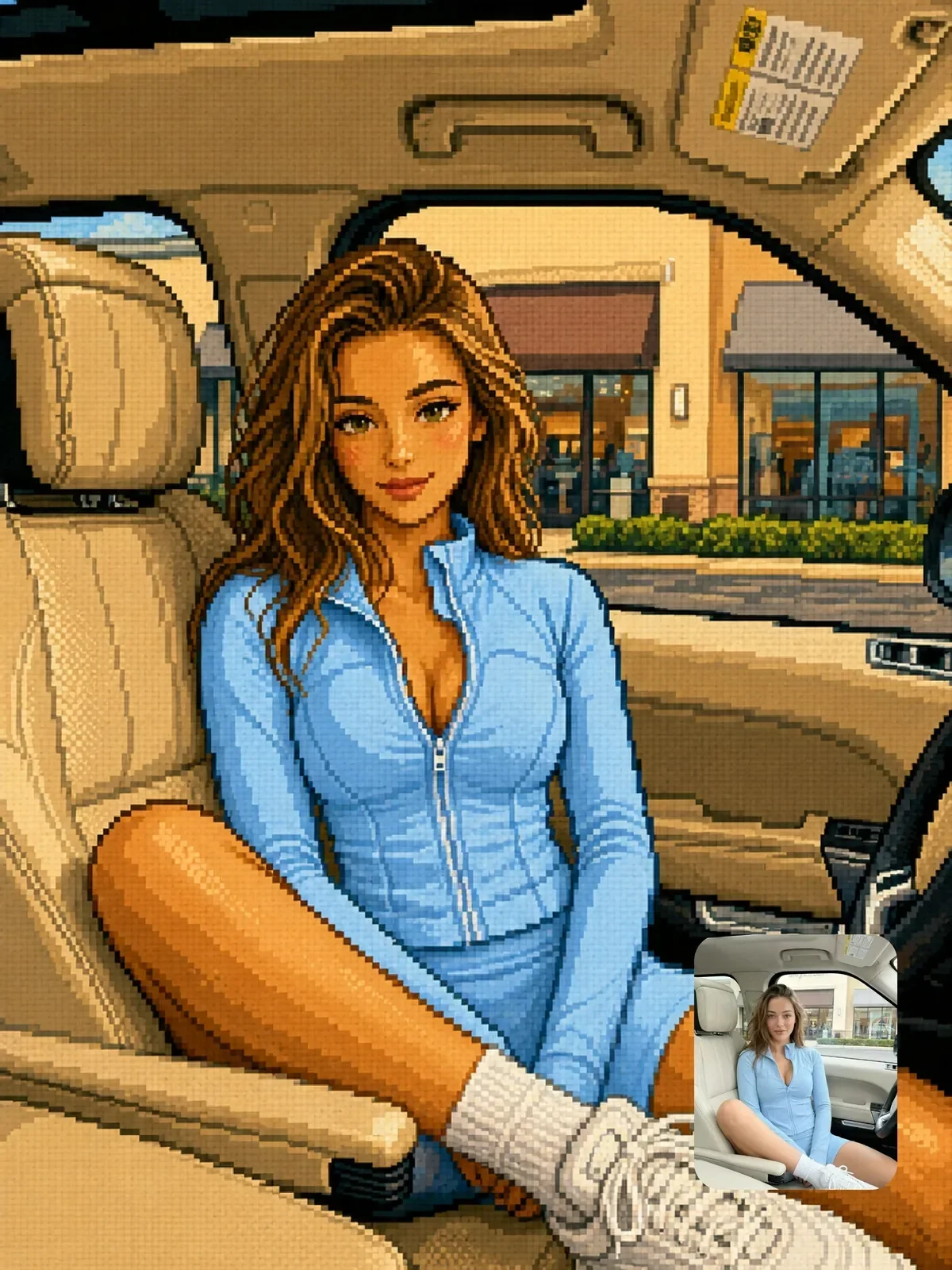
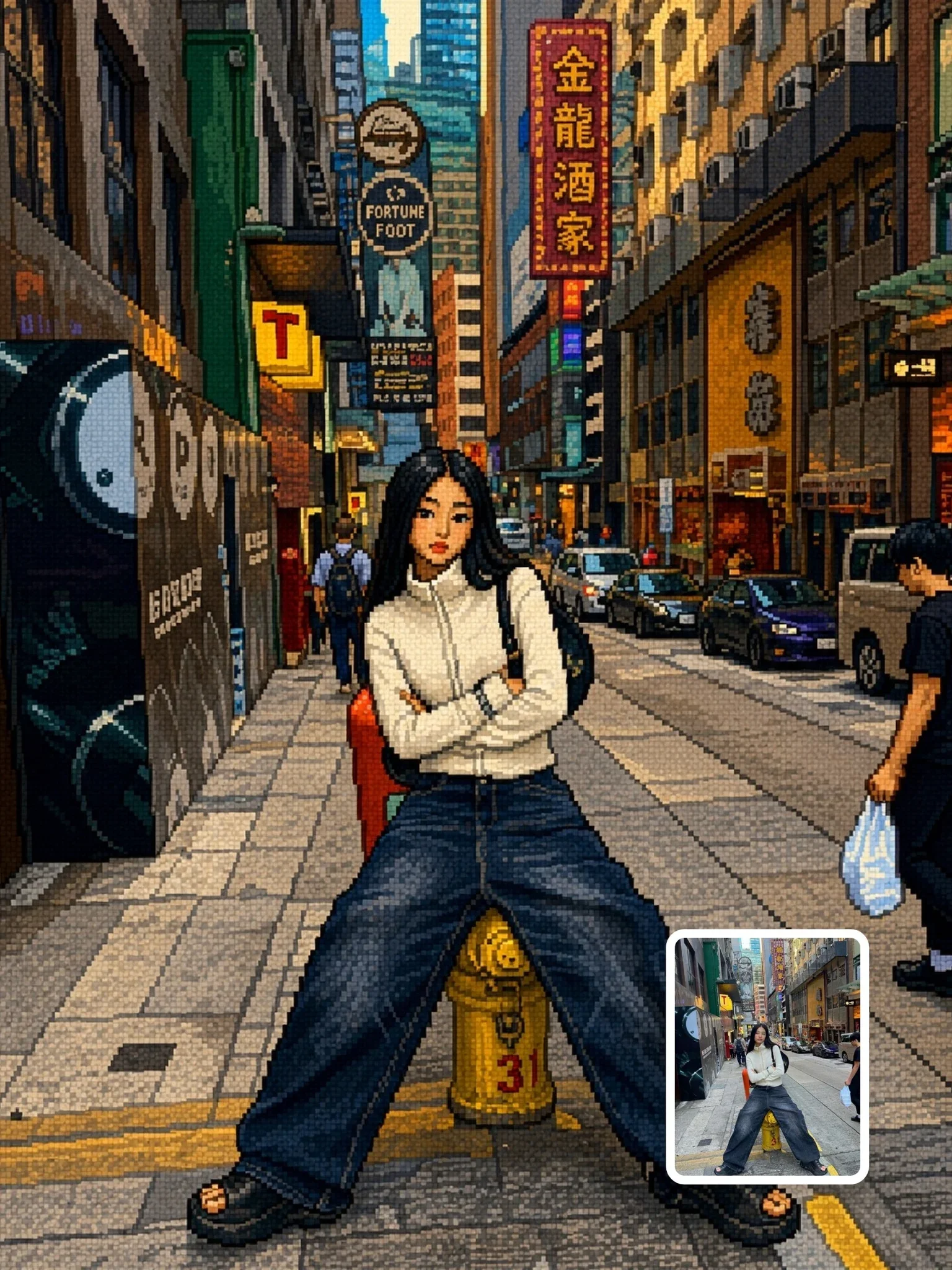
The 16-bit retro video-game pixel art prompt shows this in practice: it keeps your original composition and converts everything into clean pixel blocks, limited saturated colors and crisp edges. That combination of a locked layout and a strict style is the reliable way to convert a photo.

Use dithered sky or checkerboard dithering in shadows when you want that 16-bit texture. Without it, models tend to fill large areas with smooth digital gradients, which instantly breaks the retro feel.
Isometric pixel art and the 2:1 line
Isometric pixel art shows a scene from above at an angle, like a tiny room or a city block seen from a corner. Pixel artists rarely use true isometric angles. Instead they draw diagonals that move two pixels across for every one pixel up. This 2:1 ratio gives clean, stair-stepped lines without jagged breaks, and it is the standard for isometric games and illustrations.
In prompts, combine isometric pixel art with a contained subject, such as a single cozy bedroom on a floating square tile or a corner café on a small diorama base. Isometric views work best as islands, because the edges of the scene are part of the charm. Ask for clean 2:1 pixel lines and no perspective distortion, since models sometimes drift toward a normal camera perspective with converging lines.
Isometric pixel art of a tiny ramen shop on a square floating tile, clean 2:1 pixel lines, no perspective, warm interior light spilling through the doorway, limited palette of 16 colors, crisp pixels, soft dithered shadows under the awning.
Why AI pixels are often fake, and the fix
Here is the honest truth: an image model does not draw on a real pixel grid. It generates a full-resolution image that looks pixelated. Zoom in and you will often find pixels of slightly different sizes, edges that are soft or smeared, and dozens of near-identical shades where the style should have one. At normal viewing size it looks fine; for game assets, prints or zoomed crops it does not.
You can fix most of this in a basic image editor in a few minutes. This is ordinary pixel art practice, not a trick specific to any tool.
- Find the intended grid. Zoom in and count how many screen pixels make up one art pixel. Say each block is about 8 pixels wide.
- Downscale with nearest neighbor. Resize the image to one eighth of its size using the nearest-neighbor method, so each block becomes one real pixel.
- Reduce the palette. Convert to an indexed palette of 16 or 32 colors to merge the near-duplicate shades.
- Touch up by hand. Fix stray pixels on outlines and faces; at this size it takes minutes.
- Upscale by a whole number. Enlarge by 400% or 800% with nearest neighbor again. Whole-number scaling keeps every pixel perfectly square.
Never upscale pixel art with smooth or bicubic resampling. It blurs the edges you just cleaned up. Nearest neighbor, sometimes called hard edges or pixel resize, is the only correct choice.
Converting your own photo
Photos are full of detail that pixel art cannot hold. The best source images have a clear subject, simple shapes and strong contrast between subject and background. A person in a bright jacket against a blue sky converts beautifully; a group in a cluttered market usually turns into noise.
Tell the model to keep the composition and the main identity cues, then to simplify everything else into blocks. The photo to retro pixel art prompt follows exactly this order: preserve the framing, subject and pose, then apply a clean pixel treatment. For portraits, likeness at low resolution comes from hairstyle shape, glasses and clothing color, much more than facial detail. If likeness matters, read keeping a person recognizable.
Make my photo pixel art.
Convert this photo into 16-bit pixel art. Keep the framing, my pose, my curly dark hair, round glasses and yellow raincoat. Simplify the street behind me into flat tiled shapes, use a 24-color palette, dithered sky, crisp square pixels, no anti-aliasing.
Game framing: HUDs, title screens and covers
A pixel image becomes a game screenshot when you add the furniture of a game. A health bar, a score counter, a dialogue box at the bottom with a character portrait, or a blinking press start line on a title screen each tell the viewer what they are looking at. Keep these elements few and simple, and describe their position: dialogue box across the bottom fifth of the frame.
Text is the risky part. Pixel fonts are tiny, and models often invent letters. Keep on-screen words to two or three short ones, or leave the boxes empty and add text yourself afterward. Retro box art is a different style again, usually painted rather than pixelated. A painted cover and a pixel screenshot of the same scene make a good pair for a carousel.
Voxels and blocks: the 3D cousins
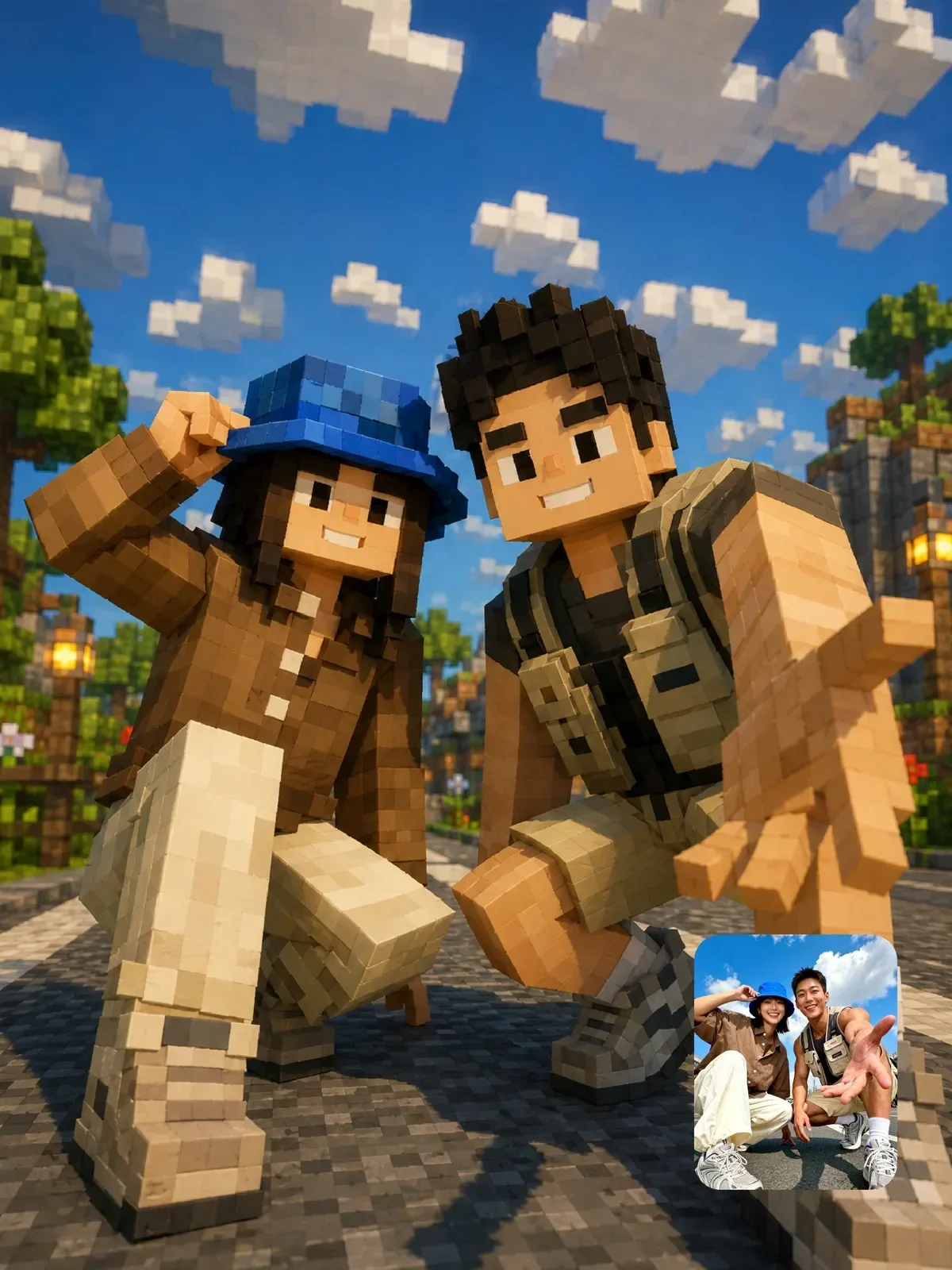
Voxel art is pixel art in three dimensions: scenes built from small cubes, lit with real light and shadow. It carries the same appeal of visible building blocks but adds depth, ambient occlusion in corners and soft shadows. Block-world games made this look familiar to a whole generation.
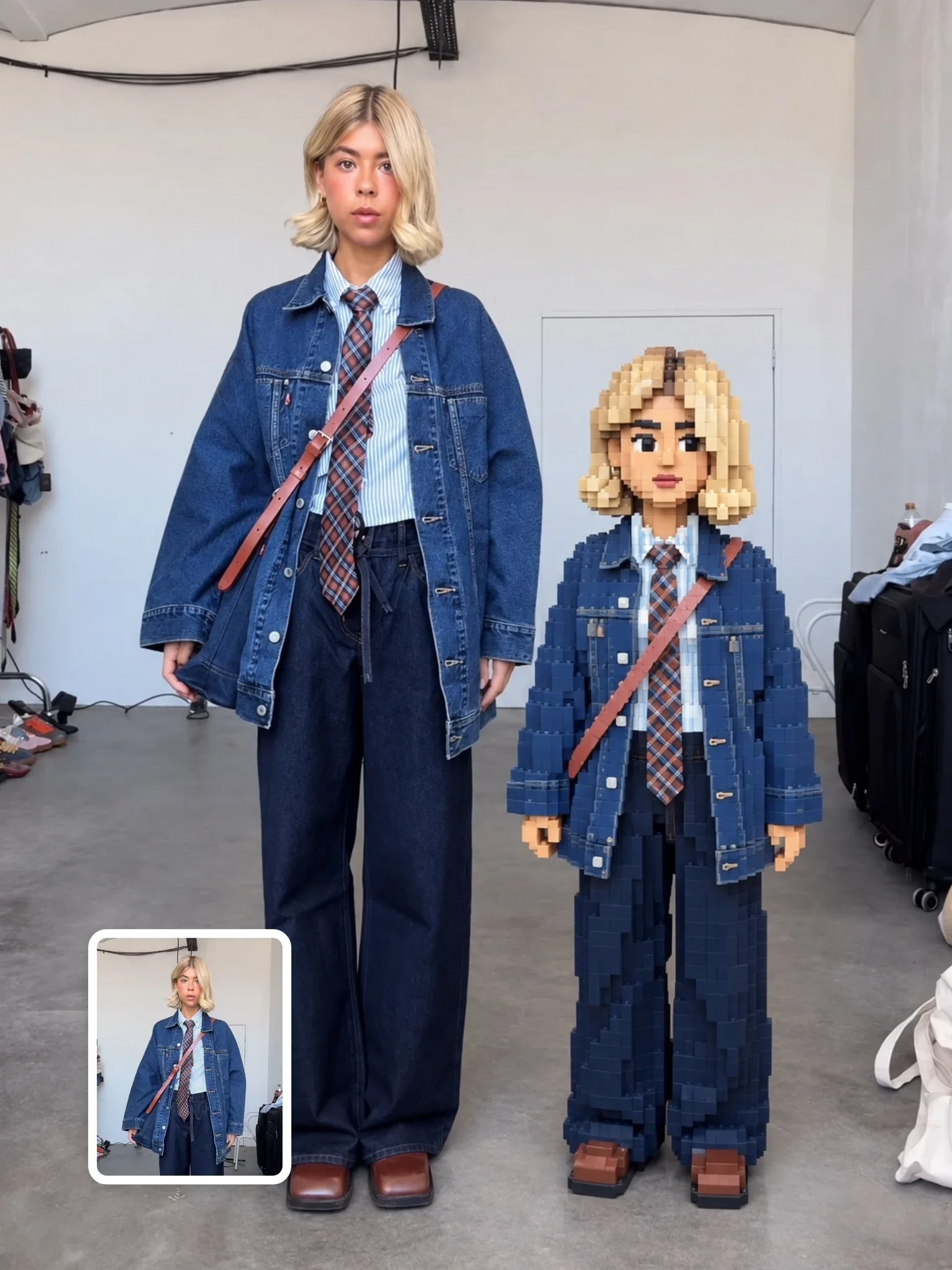
When you prompt voxels, describe cube size relative to the scene, such as each cube about the size of a hand versus chunky cubes as large as a head, plus the lighting. The photo to cinematic block world prompt adds cinematic light to a voxel conversion, which is what keeps it from looking like a flat game screenshot. The pixel brick effect goes further, placing a voxel twin beside the real person in an untouched photo.
Exercise: one character, three eras
Pick a simple character, such as a cat in a scarf or yourself in a favorite jacket, and prompt the same pose three ways:
- 8-bit sprite, 16 pixels tall, six colors, black outlines, plain background.
- 16-bit sprite, 48 pixels tall, 24 colors, three shading tones, dithered sky with a parallax hill.
- Isometric pixel scene, the character standing in a tiny room on a floating tile, 2:1 lines.
Run the cleanup steps on your favorite and compare it at 800% zoom with the raw output. Once you see the difference, you will never skip the nearest-neighbor pass again.