Building Instagram Carousels With AI: Sequence, Consistency and Covers
Plan an Instagram carousel slide by slide, keep AI images consistent across the set, design a cover that earns the swipe and build seamless panoramas.
Visual AI Club7 dk okuma
Bu rehber İngilizce yazılmıştır.
A carousel is closer to a tiny picture book than to a post. Each slide has to look like a page from the same book and give the reader a reason to keep swiping. You will learn how to storyboard a carousel before generating, how to keep characters and palettes stable from slide to slide, how to design the cover, and how to make a panorama that flows across slides.
Storyboard on paper first
The most common carousel mistake with AI is generating a handful of nice images and then trying to find an order for them. That produces a gallery, not a sequence. Instead, write the slides as a numbered list of one-line descriptions before any prompt, the way a comic artist thumbnails a page.
Most carousels that hold attention follow a simple arc. The cover makes a promise, the second slide confirms the promise is worth it, the middle slides deliver, and the final slide gives the reader something to do. Five to eight slides is a comfortable length for most topics; the platform's maximum has changed over time, and more slides are only better if each one earns its place.
| Carousel type | Slide pattern | Where AI images help |
|---|---|---|
| Step by step | Cover, then one step per slide, then a recap | Illustrating each step in the same style |
| Before and after | Cover, before, after, what changed, how | Visualizing the after state or the concept |
| Story | Hook, setup, turn, payoff, closing line | Keeping one character through every scene |
| List | Cover with the number, one item per slide, favorite last | Consistent icons or scenes for each item |
| Panorama | One wide image split across slides | Generating a scene designed to be cut |
Read your storyboard out loud. If two slides say the same thing, merge them. If the jump between two slides feels abrupt, you are missing a slide.
Lock the look before you generate slide two
Inconsistency is what makes AI carousels look cheap: the palette warms up on slide three, the character's jacket changes color on slide four, and the illustration style turns glossy on slide five. Image models do not remember earlier generations unless you give them something to hold on to. You have three tools for that.
A shared style block
Write two or three sentences that define rendering style, palette, light and texture, and paste them unchanged into every slide prompt. Put the slide's subject first and the style block after it, so each image focuses on its own content while sharing the same look.
Flat paper-cutout illustration, layered colored paper with soft drop shadows between layers, palette of navy, coral, mustard and off-white, gentle paper texture, even soft light, no gradients.
A character description that never changes
If a person or mascot appears across slides, describe them with the same words every time: hair, clothing, one or two signature items. A girl in a yellow raincoat with a red backpack and round glasses is easy for a model to repeat. A stylish young woman is not. For longer series, see how to create a consistent AI character.
The previous slide as a reference
When your tool accepts an uploaded image, attach the approved first slide when generating the next one and ask to match its style, palette and character exactly while changing only the scene. In a single ChatGPT conversation, generating slides one after another and referring back to the first image also helps keep things aligned.
Slide 3: a girl at a train station, cute illustration.
Slide 3 of a travel carousel: the same girl in the yellow raincoat, red backpack and round glasses, standing on a train platform reading a paper ticket, a red train arriving behind her. Match the first image's style exactly. Flat paper-cutout illustration, layered colored paper with soft drop shadows between layers, palette of navy, coral, mustard and off-white, gentle paper texture, even soft light, no gradients. Vertical 4:5.

Design the cover to earn the swipe
The cover is the only slide most people see. It competes in the feed with everything else, at a small size, while someone scrolls fast. It needs to read in about a second, which pushes it toward simplicity.
- One subject, large. A single clear figure or object filling a good part of the frame reads at thumbnail size. A detailed scene does not.
- Strong contrast. A light subject on a dark background, or the reverse. Mid-tone on mid-tone disappears in the feed.
- Planned empty space for the title. Ask the model for a clear area at the top or bottom third. You will add the headline yourself.
- A hint of what comes next. An arrow, a cropped object at the right edge, or a subject looking toward the right edge nudges the eye to swipe.
Add titles and slide text in a design app, not inside the image prompt. Image models have improved at lettering, but on a carousel you need the same font, size and position on every slide, which is much easier in a layout tool. If you do want lettering generated in the image, read getting clean text in AI images first.
Make a seamless panorama across slides
A panorama carousel is one continuous image split into slides, so the scene seems to continue as you swipe. It is a satisfying format for landscapes, long streets and travel posters. The geometry is simple once you know the numbers.
- Decide the slide count and the slide ratio. Three 4:5 slides side by side make a 12:5 strip; three square slides make 3:1.
- Many image tools offer only a few fixed ratios, so generate the widest ratio available and, if needed, extend the sides with an outpainting or expand feature.
- In the prompt, describe the scene from left to right and say where the main elements fall, so nothing important lands exactly on a cut line.
- Crop the strip into equal slides in a design app. Check each slide alone; every one should still have something to look at.
- Place one element across each cut, like a road, a river or a long cloud, so the eye follows it into the next slide.
A wide panoramic paper-cutout illustration of a coastal town read from left to right: a lighthouse on a cliff at the far left, a curved harbor road running across the whole image, colorful houses in the center, a small ferry and open sea at the far right. Keep the lighthouse and the ferry away from the two points one third and two thirds across. Palette of navy, coral, mustard and off-white.
Leave a little margin at both outer ends of the panorama. Instagram's crop and your own slicing can shave a few pixels, and a subject touching the very edge looks accidentally cut.
Pace the middle slides
Readers drop off in the middle of a carousel when every slide looks the same. Consistency of style is not the same as monotony of composition. Vary framing while keeping the style block fixed: a wide establishing scene, then a close-up of a detail, then a medium shot with the character, then an overhead view.
Camera language helps here even in illustration. Words like close-up, overhead view, low angle or wide establishing shot change composition without changing style. The guide on camera angles for AI images lists the options and what each one feels like.
End with a slide that does something
The last slide is where readers decide whether to save, share or follow. Make it useful on its own: a recap of the steps, a single question, or a short checklist they would want to come back to. Visually, return to the cover's composition or palette, so the carousel feels closed, like the last page of a book matching the first.
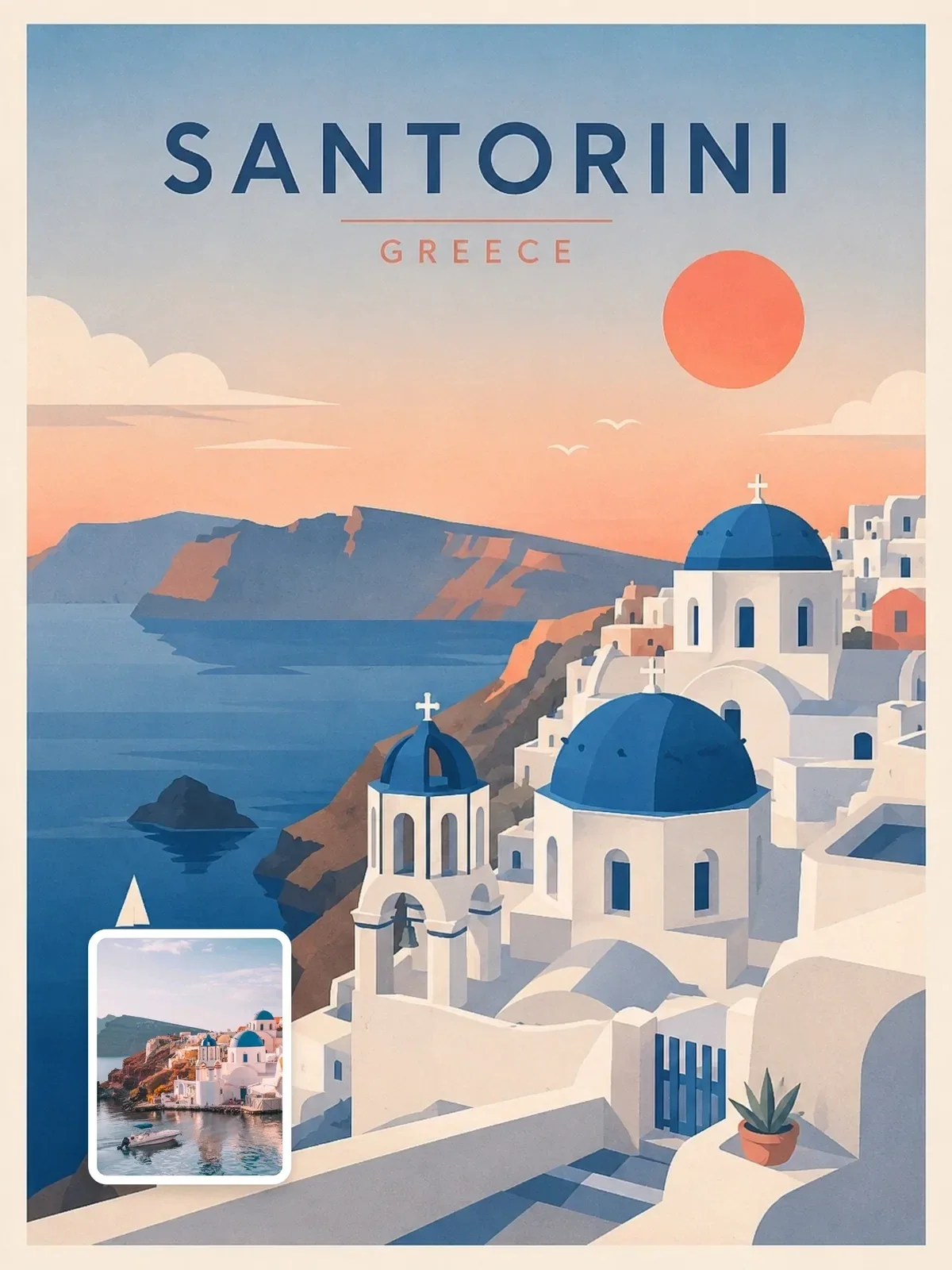
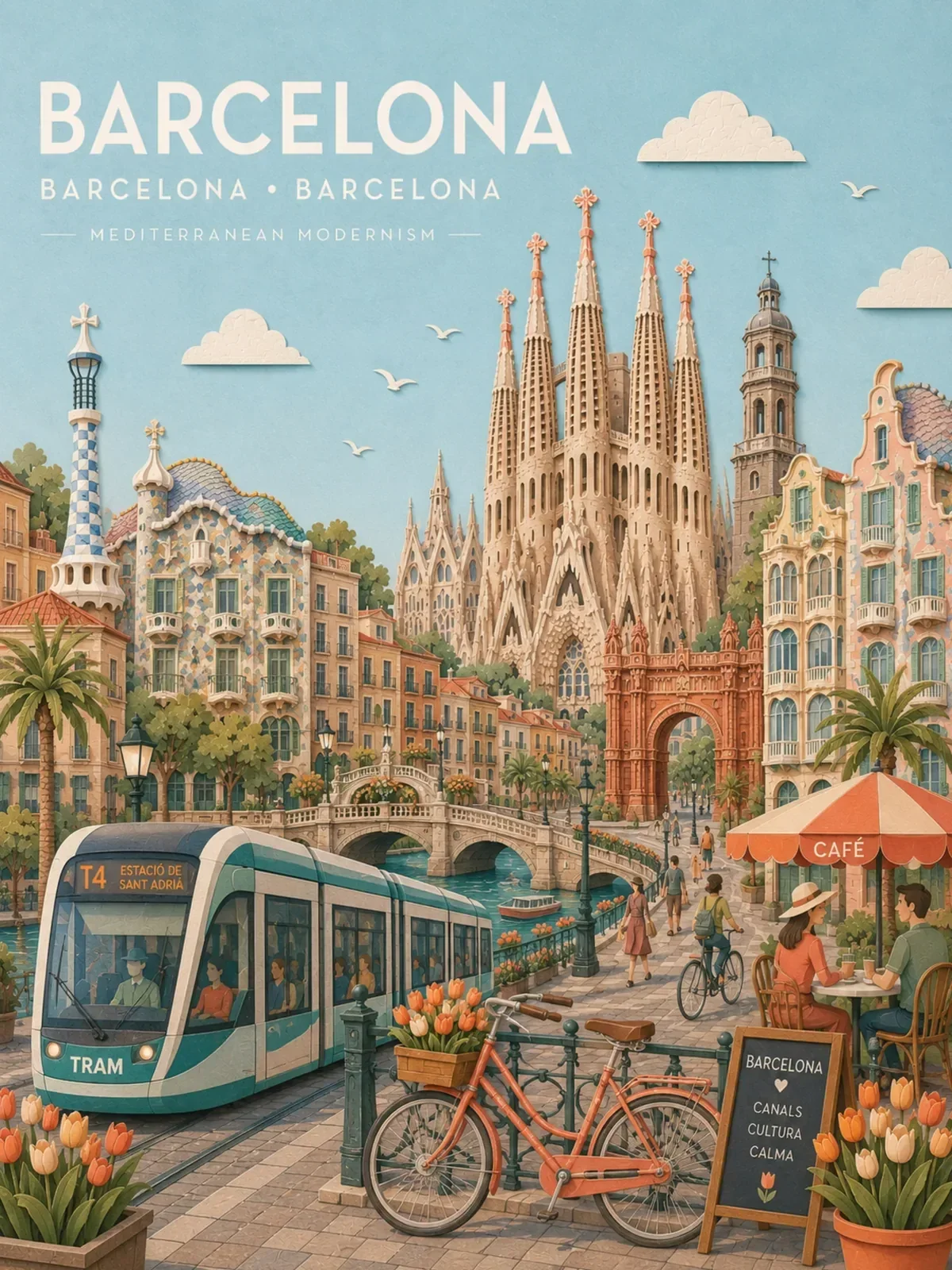
Stylized travel prompts like Minimal layered-cutout travel poster make good recap slides because they leave clean space for text. If you post carousels weekly, slot them into your plan using the routine in planning a week of Instagram content.
Build a five-slide carousel this week
Pick a topic you can teach in four steps and work through this exercise. It covers every skill in this guide at small scale.
- Write a five-line storyboard: cover, three steps, recap.
- Write a style block and, if a character appears, a fixed character line.
- Generate the cover first, with one large subject and empty space for a title.
- Generate slides two to four with the cover attached as a style reference, varying the framing on each.
- Generate the recap slide echoing the cover's palette.
- Add all text in a design app with one font and one position, then check the five slides side by side at phone size.