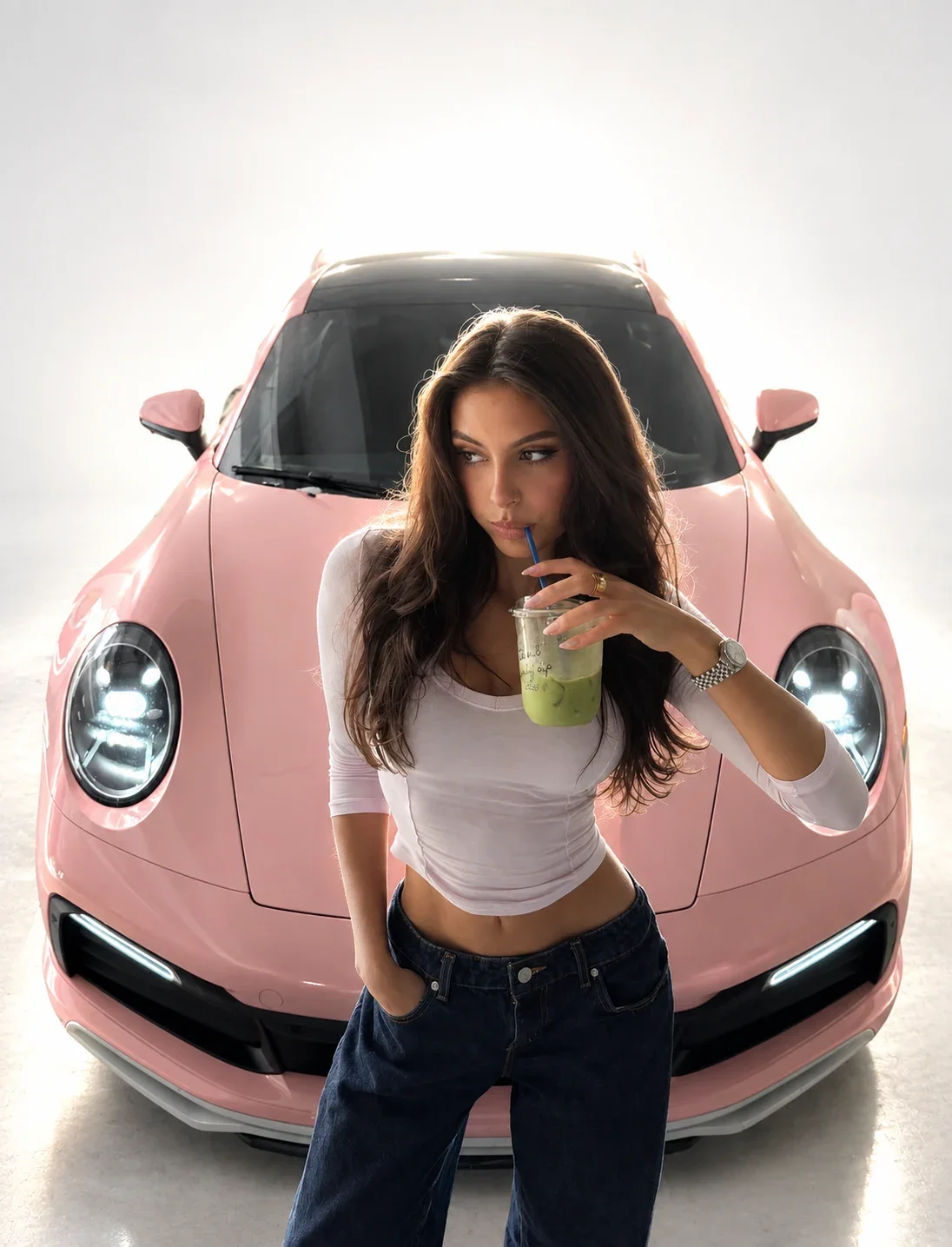
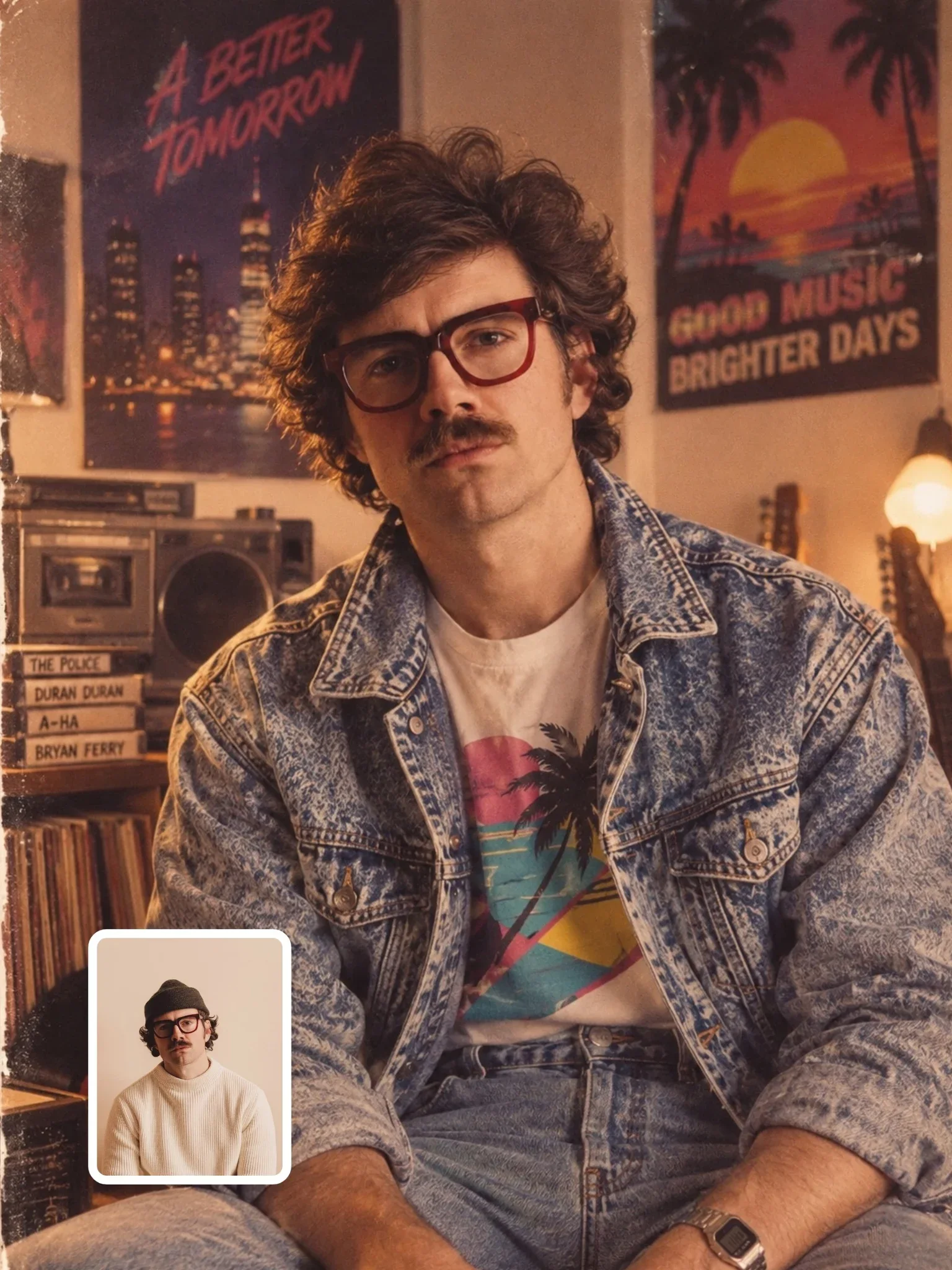
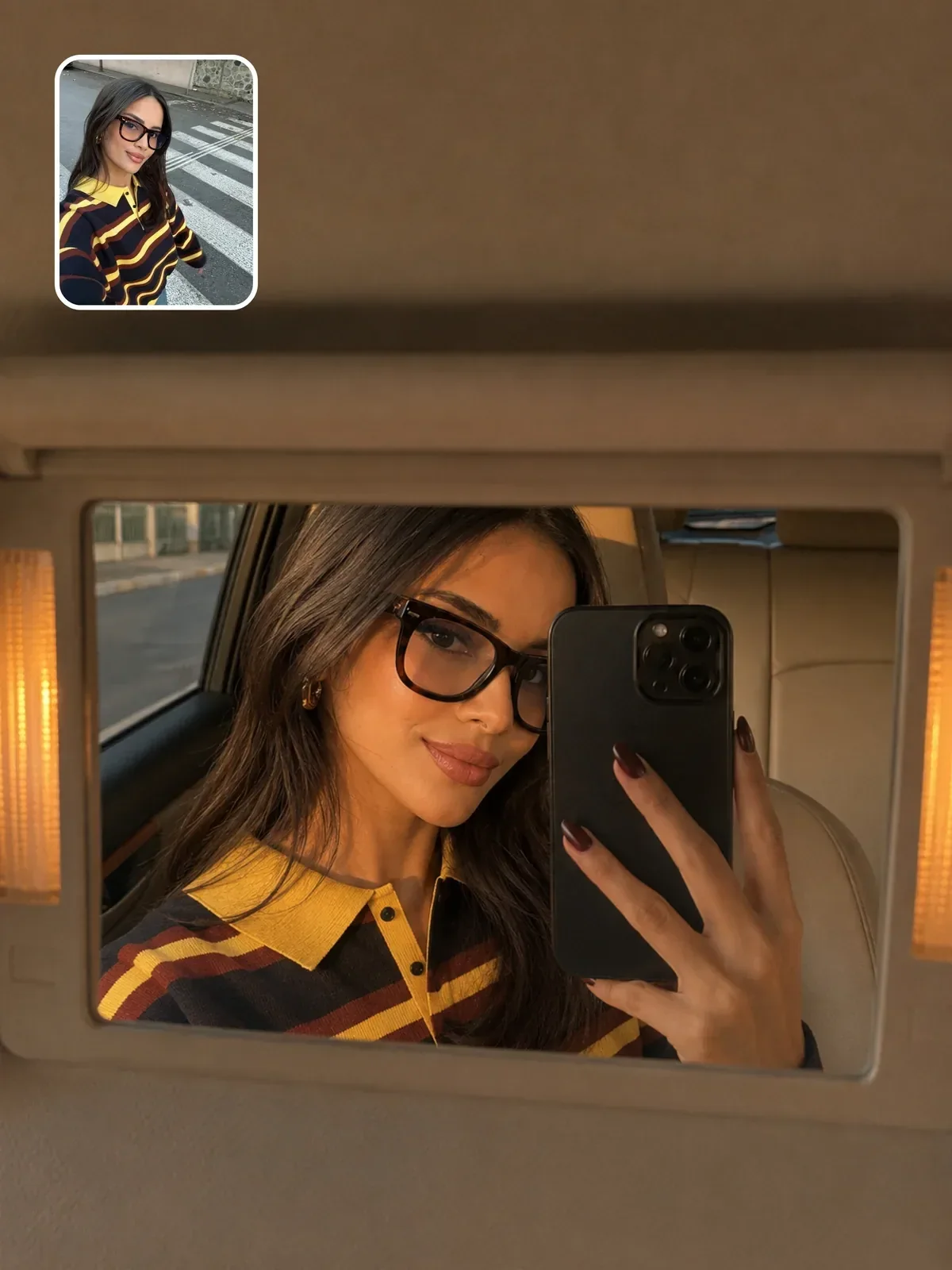
ChatGPT Image Generation: A Practical Guide to Better Results
A working routine for ChatGPT image generation: a strong first message, labeled reference photos, targeted follow-up edits, and when to start a fresh chat.
Visual AI Club7 min de lecture
Ce guide est rédigé en anglais.
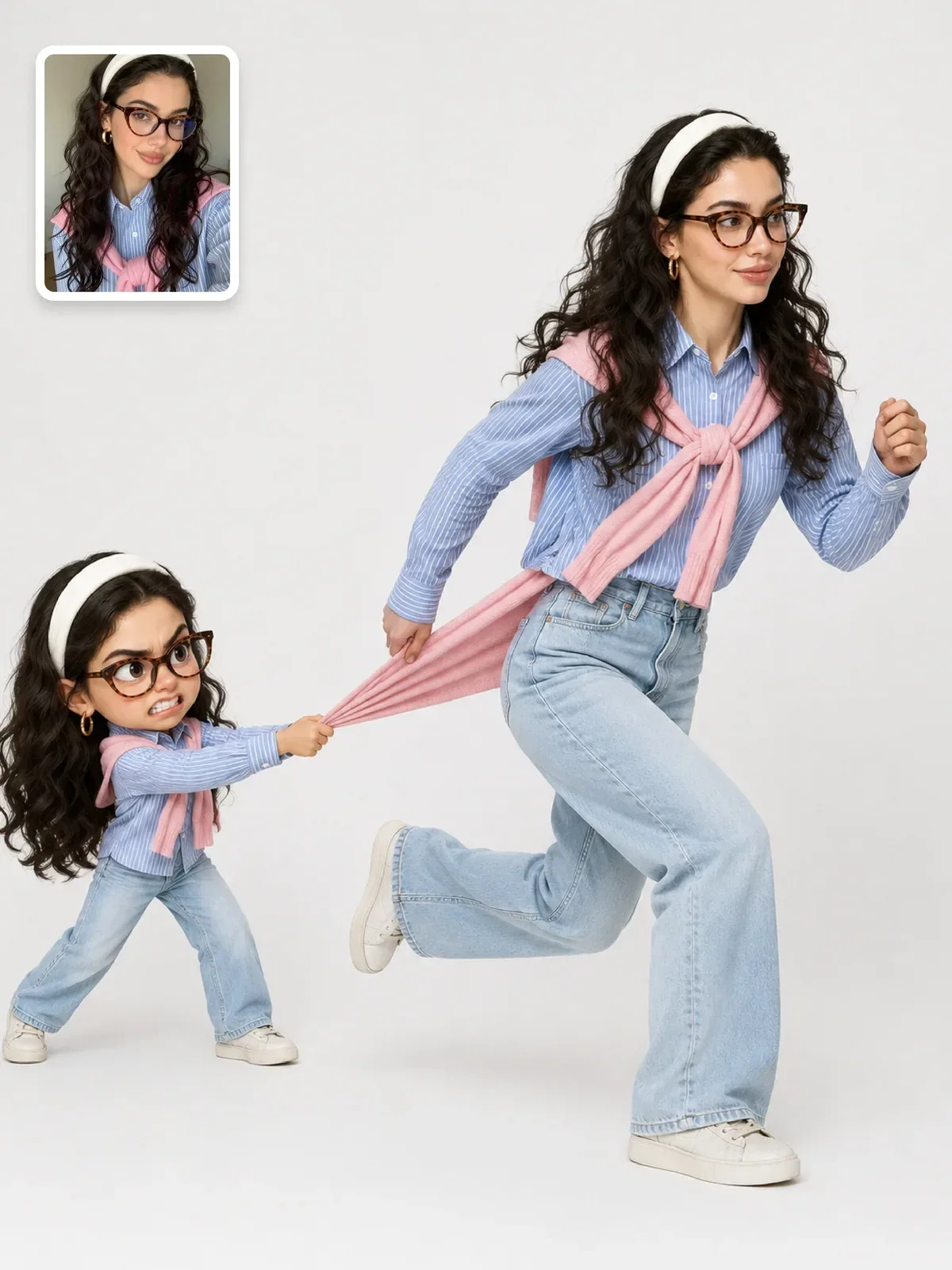
ChatGPT’s image generation works less like a slot machine and more like a collaborator who remembers the conversation. You can describe a picture in plain language, show it photos, and then fix one detail at a time by talking to it. This guide gives you a routine that uses those strengths and avoids the traps that come with them.
What changes when images live inside a chat
With a standalone image tool, each prompt is a fresh start. In ChatGPT, your request arrives together with everything earlier in the conversation: previous messages, uploaded photos and the images it already made. That context is the reason follow-up edits work so well.
It is also the reason things go sideways. An instruction you gave three messages ago can keep influencing new images after you have moved on. A look you rejected can creep back because it is still in the history. Treat the conversation as part of your prompt, because it is.
Two other practical differences matter. First, it reads full sentences and long structured instructions comfortably, so you do not need keyword lists. Second, it is relatively good at short text inside images, though you should still proofread every letter.
Write a first message that carries the whole brief
The first message sets the direction for everything that follows, so put the important decisions there rather than adding them one by one later. A good opening message contains:
- The goal in one sentence: what the image is and what it is for.
- What each uploaded image is for, if you attach any: “Image 1 is my face reference. Image 2 shows the café I want as the background.”
- Format: orientation and aspect ratio, such as “vertical 4:5”.
- The scene, light and style, in plain sentences.
- What must not change, especially for edits of your own photo.
- Exact text in quotes, if the image needs any words.
For long prompts, labeled sections make a real difference. Headings like FORMAT, IDENTITY, SCENE and LIGHTING help you write a complete brief, and they make it easy to revise one block without touching the rest. Many prompts in this library are written that way.
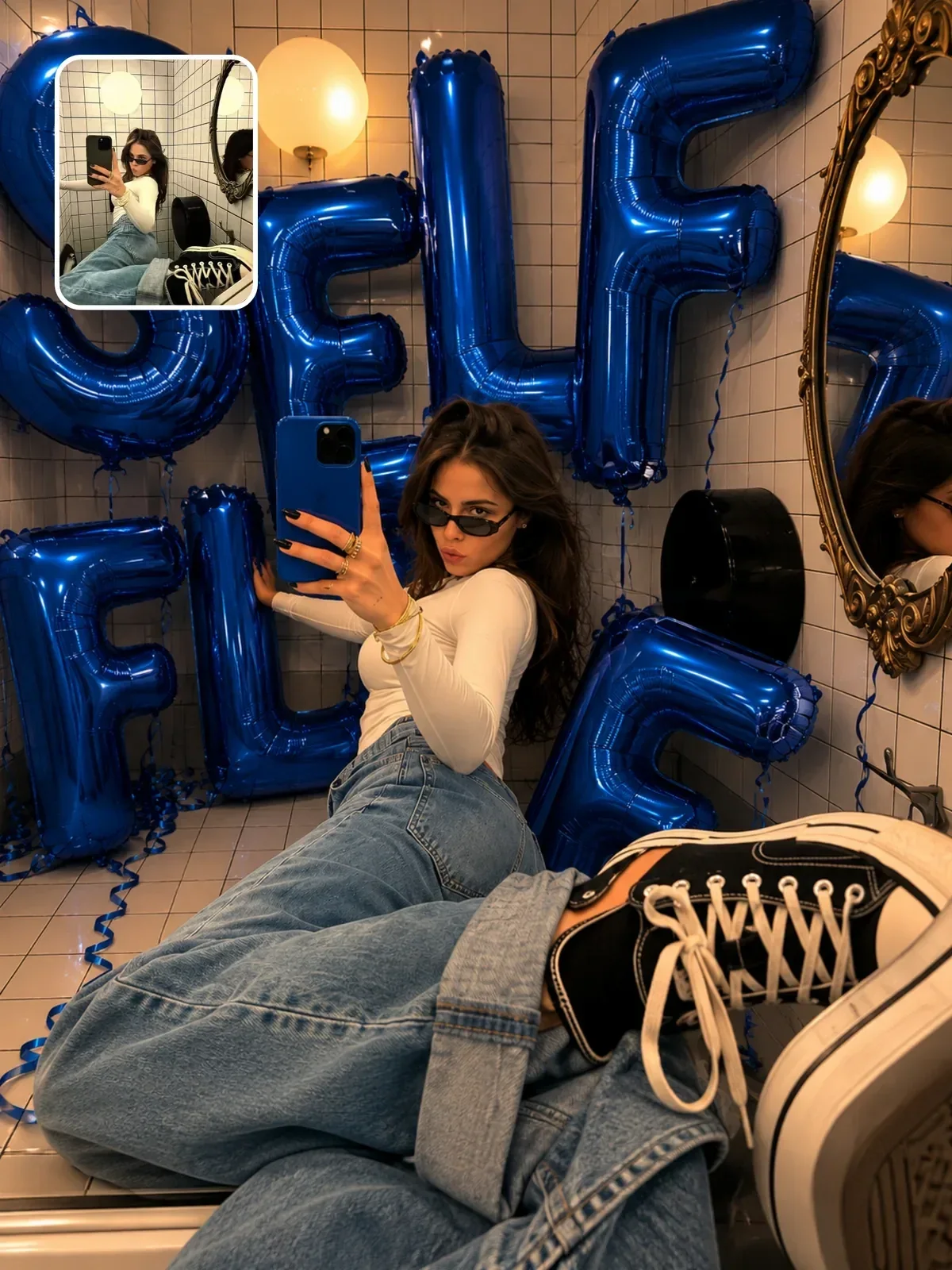

Notice the short settings block at the top of that prompt: balloon text, balloon color, phone color. Putting the values you are most likely to change in one obvious place turns a long prompt into something you can reuse in seconds. Prompt templates and variables builds on the same idea.
Let it describe before it draws
Because the same chat handles both language and images, you can ask for words before pixels. Upload a photo whose mood you like and ask: “Describe the lighting in this photo: direction, softness, color temperature and where the shadows fall. Do not generate an image yet.” The answer gives you vocabulary you can reuse in your own prompt, and it shows you how the model is reading the picture.
The same trick works in reverse. Paste your draft prompt and ask which instructions conflict or are ambiguous before you generate anything. It costs one message and often saves several rounds of edits, especially on long prompts where two sections quietly disagree about the framing or the light.
Working with your own photos
When ChatGPT edits or transforms a photo, everything it knows about the person comes from the pixels you give it. A better reference beats a longer prompt. Before you upload, check that:
- The face is sharp, reasonably large in the frame and not hidden by hair, hands or sunglasses.
- The light is fairly even. Harsh shadows across half the face get read as part of the face.
- There is no beauty filter or heavy edit baked in. The model will copy the smoothing.
- The photo was not taken from very close with a wide lens. Arm’s-length selfies enlarge whatever is nearest the camera, usually the nose. A photo taken by someone a couple of meters away is a more faithful reference.
- You include the full outfit if the outfit matters to the result.
Only upload photos of yourself or of people who have agreed to it. If a request involves a real public figure or another restricted subject, ChatGPT may decline. Steer toward your own photo or a fictional character rather than trying to work around it. Editing your own photos with ChatGPT and keeping a person recognizable go further on this.
Follow-ups: small, specific and anchored
Once you have a result that is mostly right, do not paste a new version of the whole prompt. Ask for the one change you want and say what stays the same. The model has the previous image in context, and a narrow request keeps the rest of it stable.
Make it better and more cinematic.
Keep the person, pose, outfit and framing exactly the same. Change only the light: make it late-afternoon sun coming from the left window, warm, with a soft shadow falling to the right.
Useful follow-up patterns:
- “Same image, but move the camera lower, to about waist height, looking slightly up.”
- “Keep everything; replace the background wall with dark green painted brick.”
- “The face has become smoother than the reference. Restore natural skin texture and keep the original nose shape.”
- “Correct only the text on the sign so it reads exactly: OPEN LATE.”
Name what stays before you name what changes. Starting with “Keep everything the same except…” sets the scope of the edit before the model reads the change.
Know when to start a fresh chat
Each edit produces a new image, and small details can drift a little each time. After several rounds you may notice skin getting smoother, colors getting stronger or the face slowly losing its likeness. Long conversations also pile up instructions that contradict each other.
Start a new conversation when:
- An element you asked to remove keeps coming back.
- The image quality or likeness is getting worse with each round instead of better.
- You want to compare two prompt versions fairly. Old context in one chat makes the comparison uneven.
- You are switching to a different idea and do not want the old style to leak in.
When you restart, bring the best prompt text and the original reference photo, not the edited result. Starting from an edit carries its drift forward.
Getting the format, grids and text right
State orientation and ratio in words near the top of the prompt, and do not mention a different ratio anywhere else. Image generators typically produce a limited set of output sizes, so look at what you got and plan to crop slightly if needed. Keep faces and text away from the edges so a small crop costs nothing. The guide to aspect ratios explains which shape suits which use.
Grids and multi-panel layouts work when you spell out the structure: number of rows and columns, what goes in each cell, equal sizes and consistent spacing. For text, keep it short, put the exact words in quotes, and describe placement and lettering style.
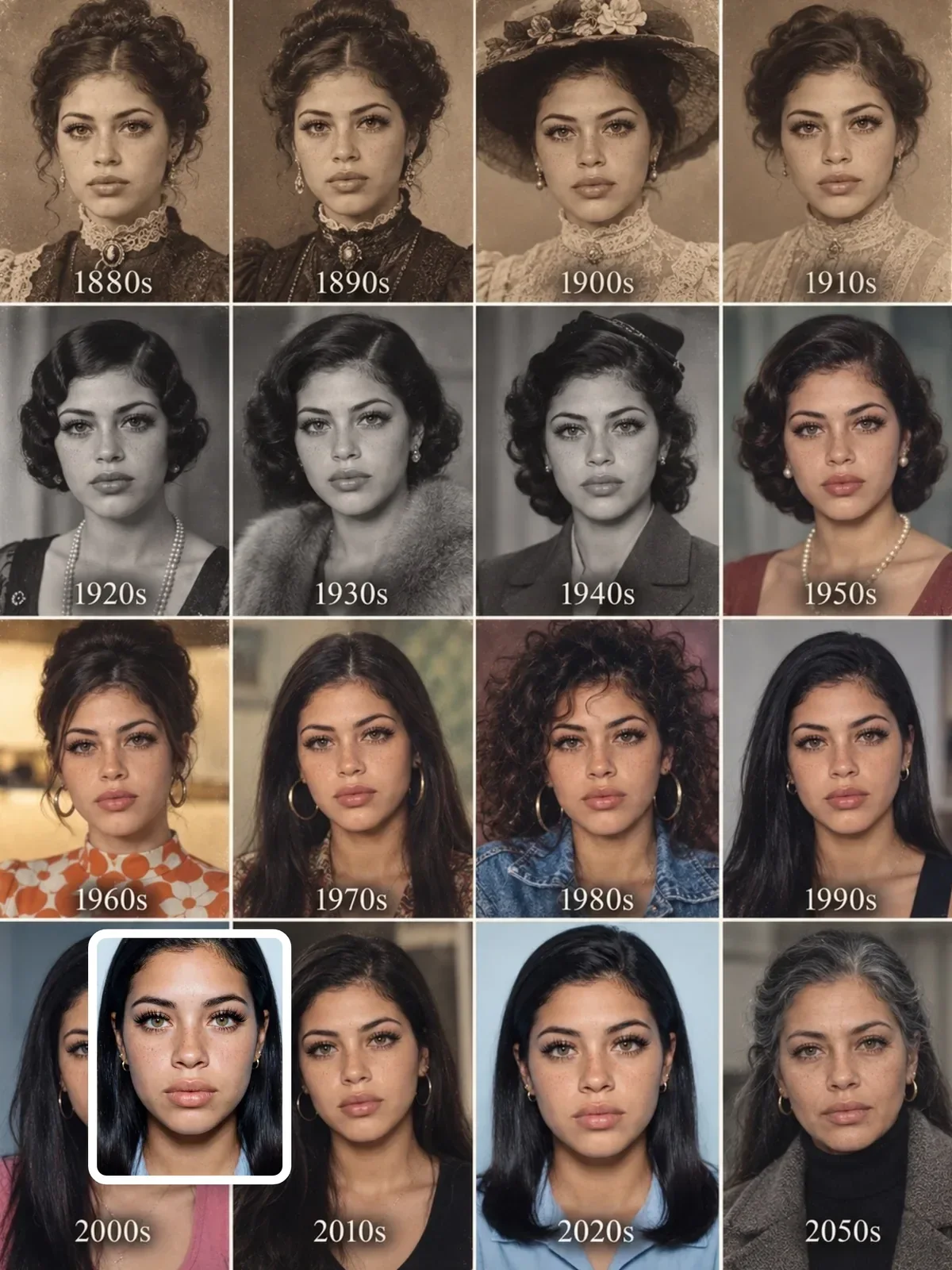
That prompt shows a complex layout handled by plain structure: a 4×4 grid with every row listed, followed by a separate section on keeping the same identity across all sixteen panels.
Troubleshooting common results
- The face does not look like the person. Likely cause: small or filtered reference, strong style, face tiny in the frame. Try: use a sharper photo, add a specific identity line, frame tighter.
- Part of the prompt was ignored. Likely cause: too many competing instructions. Try: cut the extras, move the ignored part higher, or do it as a follow-up edit.
- A removed element keeps returning. Likely cause: it is still in the conversation history. Try: start a new chat and describe the scene without mentioning it.
- Skin looks plastic or too perfect. Likely cause: words like “flawless”, “perfect”, “ultra”. Try: ask for natural skin texture, visible pores, real camera softness.
- Wrong orientation. Likely cause: ratio stated late or contradicted. Try: put the format line first and remove other size mentions.
- Misspelled lettering. Likely cause: text too long or placement unclear. Try: shorten to a few words, quote it, ask to fix only the text.
A session routine you can reuse
- Decide the image and its destination before opening the chat.
- Check your reference photos for sharpness, even light and no filters.
- Write one complete first message: goal, labeled references, format, scene, light, style, what stays, exact text.
- Generate, then judge the result against your brief, not against your mood.
- Make one anchored follow-up at a time, starting with “Keep everything the same except…”.
- If quality drifts or old instructions linger, open a new chat with the best prompt and the original photo.
- Save the final prompt and a note of what worked to your prompt library.