Restoring Old Family Photos With AI, Carefully
Scan, repair and colorize old family photos with AI without inventing faces: scanning settings, restoration prompts, honest color and a side-by-side check.
Visual AI Club7 min de leitura
Este guia está escrito em inglês.
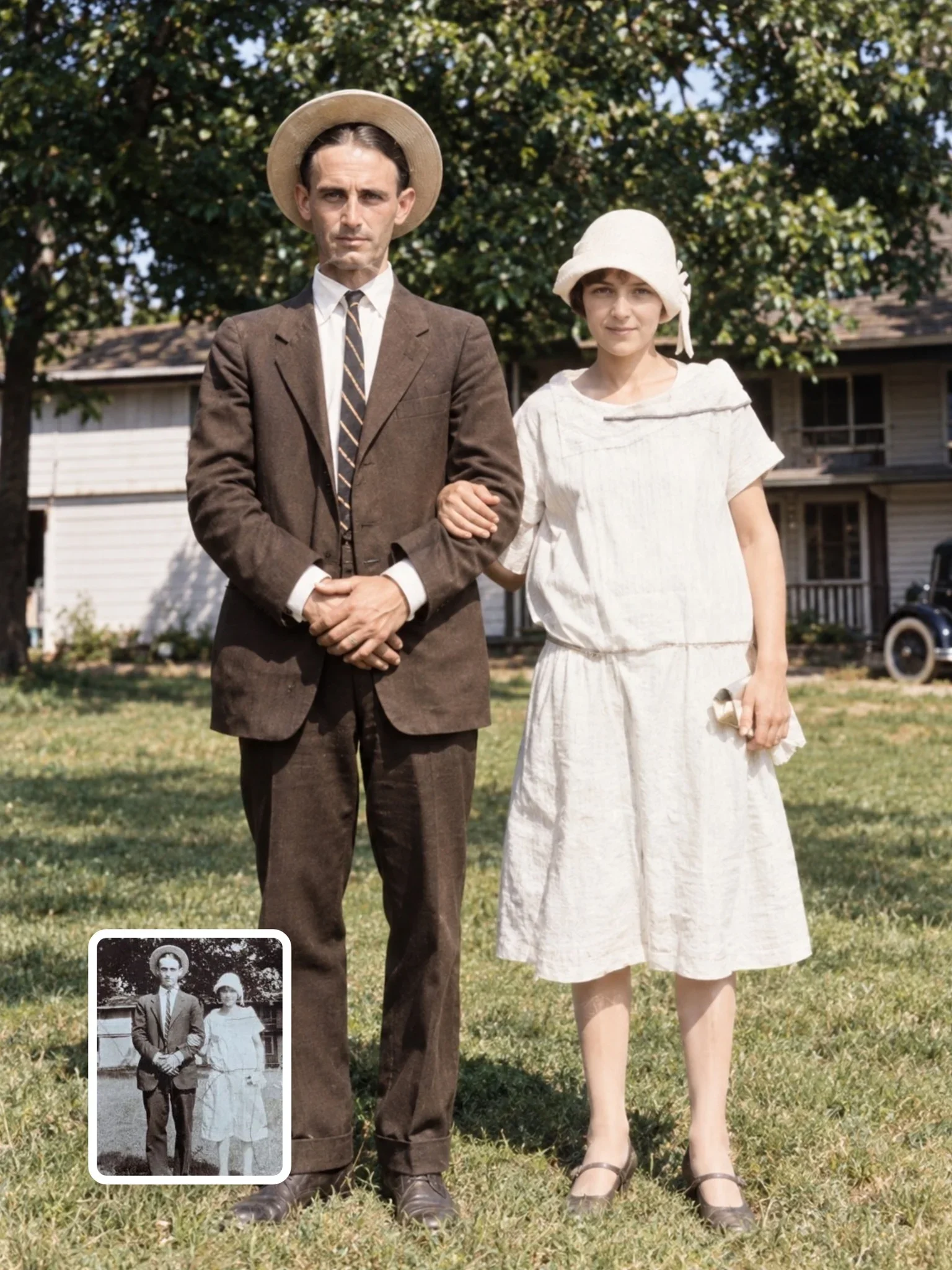
A faded print of your great-grandmother is not a style experiment. It is the only record of her face, and an AI model will happily replace that face with a prettier, more generic one if you let it. This guide walks you through scanning, prompting, colorizing and checking a restoration so the person who comes out the other side is still the person who went in.
Start with the best scan you can make
Every detail the model keeps has to exist in the file you upload. A blurry phone snapshot of a print under a kitchen light gives the model a soft, glare-streaked face, and it fills the gaps with guesses. A good scan gives it real eyelids, real hairlines and real fabric, so it has less to invent.
- Use a flatbed scanner if you can. Scan small prints (wallet size, 6 x 9 cm and similar) at 1200 dpi and standard prints at 600 dpi. Old prints are small, and the extra pixels let you crop to a single face later.
- Save a lossless master. Keep a TIFF or PNG as your untouched original. Upload a copy, never the master.
- If you only have a phone, take the print outside into open shade or next to a window on an overcast day. Hold the phone exactly parallel to the print to avoid keystone distortion, and turn off the flash; flash bounces off glossy paper and burns out the face.
- Clean the glass and the print with a soft brush or a microfiber cloth. Dust specks on the scanner glass become black dots that the model may read as moles or freckles.
- Scan the back too. Names, dates and studio stamps on the reverse are part of the record, and they help you colorize honestly later.
Scan in color even when the photo is black and white. A color scan captures the yellow and brown tint of aging, which you can remove later, while a grayscale scan throws that information away before you get to decide.
Decide what kind of restoration this photo needs
Restoration covers very different jobs, and each one carries a different risk to the likeness. Name the job before you write the prompt, because a request for everything at once usually produces a glossy portrait that no longer looks like your relative.
| Job | What changes | Risk to the face | Prompt focus |
|---|---|---|---|
| Physical repair | Cracks, creases, tears, stains, missing corners | Low | Remove damage only; keep grain, tone and expression |
| Tone recovery | Fading, yellowing, low contrast | Low to medium | Restore neutral blacks and whites; no new detail |
| Sharpening | Soft focus, motion blur, small faces | High | Clarify existing features; do not redraw them |
| Colorization | Adds color to a monochrome image | Medium | Period-accurate, muted color; color is a guess |
| Recreation | A new modern-looking photo of the same person | Very high | A tribute, clearly labeled, never a replacement |
Physical repair and tone recovery are the safest places to start. Sharpening is where most identity drift happens: when a face is only a few dozen pixels wide in the original, the model has to invent eyes, teeth and skin, and it invents them from an average of millions of faces. That average is the reason restored faces so often look younger, smoother and more symmetrical than the real person.
Write a prompt that protects the face first
Image models weigh what you mention early and specifically. Put the identity instruction near the start, describe what must stay, then describe the damage you want removed. Leave out words like beautiful, flawless or perfect skin; they pull the face toward a beauty-filter look. If you want a refresher on how instructions are weighed, read how to write image prompts.
Restore this old photo and make it high quality, beautiful and sharp, in color.
Repair the uploaded 1940s black-and-white portrait. Keep the same woman with her exact face shape, uneven smile, eye spacing and hairline. Remove the crease across her shoulder, the brown water stain at the top left and the dust specks. Keep the film grain and soft studio lighting of the original; do not smooth the skin or change her age.
Notice what the second version does. It dates the photo, which tells the model what kind of lens, film and lighting to expect. It lists the quirks that make this person recognizable, because a slightly crooked smile is exactly what a model tends to straighten. And it names each piece of damage, so the model treats the crease as damage instead of a fold in her blouse.

One face at a time for group photos
In a family group, each face may be only a small patch of the frame. Crop each person into a separate image from your high-resolution scan, restore them one at a time with the same instructions, then compare. The group and couple photos guide covers why faces drift more in crowded frames and how to describe several people without mixing them up.
Colorize as an educated guess, not a fact
A black-and-white photo stores brightness, not hue. A dark gray coat could have been navy, bottle green, burgundy or brown, and no model can know which. When you colorize, you are making an informed guess, and the result should look like one: muted, plausible and consistent with the period.
- Ask the family first. Someone may remember that grandpa's car was pale blue or that the wedding dress was ivory, not white. Put those facts in the prompt.
- Read the era. Everyday clothing in the 1930s to 1950s leaned toward browns, grays, navy and muted greens; saturated synthetic colors became common later. Ask for period-appropriate, slightly desaturated color.
- Protect skin tones. Name the person's actual complexion if you know it. Models often warm every face toward the same peachy tone.
- Keep a version in black and white. The repaired monochrome image is the closest to the truth. The colorized one is an interpretation that sits beside it.
Colorize the repaired photo with muted, period-appropriate 1950s color. Her dress was pale yellow and the sofa was dark green velvet. Keep her natural olive skin tone, keep the soft window light from the left, and leave everything else in restrained, slightly faded tones like an aged color print.
Check the result the way an archivist would
The model's output can look convincing at phone size and still be wrong. Open the original scan and the restoration side by side at the same size, then zoom in to 100 percent and check each point below. It takes five minutes and catches most of the quiet substitutions.
- Ears and hairline. These are distinctive and rarely discussed in prompts, so the model changes them freely. Compare the shape of the ear lobes and where the hair meets the forehead.
- Eyes. Check the spacing between them, the shape of the lids and whether one eye was slightly smaller. Models love symmetry.
- Teeth and smile. A closed-mouth smile can become an open one with a full row of invented teeth. Compare carefully.
- Age. Restorations often shave years off. Wrinkles, under-eye shadows and laugh lines belong to the person.
- Clothing details. Count buttons, check collar shapes and jewelry. A brooch that turned into a flower is a sign that the model guessed.
- Background and text. Shop signs, house numbers and handwriting are evidence of where and when the photo was taken. Make sure they were not rewritten into nonsense.
If one area is wrong, do not regenerate the whole image and hope. Point to the specific problem: keep everything from the previous result but return the ears and the hairline to how they appear in the original upload. Small corrections keep the parts you already approved.
Keep the original and label what you made
Families pass these files around for decades. If the restored version circulates without context, in twenty years nobody will know which details came from the camera and which came from a model. A little labeling now protects the record.
- Name files clearly:
1952_aunt-maria_scan.tif,1952_aunt-maria_repaired.png,1952_aunt-maria_colorized-AI.png. - Write a short note when you share: repaired and colorized with AI; colors are a guess except the yellow dress, which Uncle Tom remembers.
- Ask living relatives before you post a restored photo of them publicly, even a childhood one. A photo of someone at age six is still a photo of them.
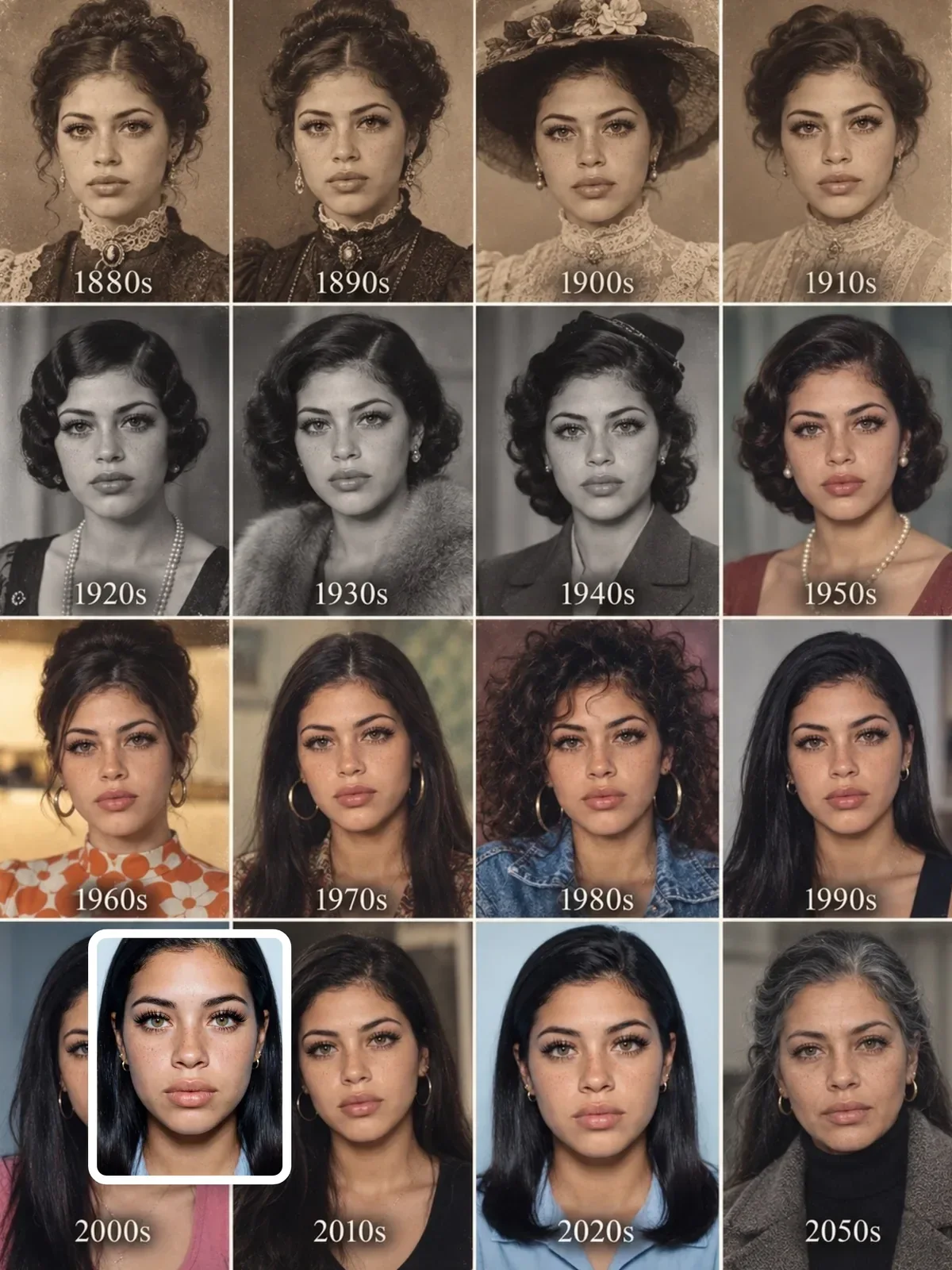
- Avoid full recreation for memorials. A modern-looking portrait of a late relative can be comforting, but present it as a tribute next to the real photo, never in its place.
For a wider look at consent and disclosure with real people's faces, the guide on using AI images responsibly goes further. If you enjoy the playful side of old-photo looks, prompts like Time Travel Portrait are better suited to your own face than to an ancestor's.
Your first restoration, step by step
Pick one photo that matters but is not the only copy in the family, and run it through this sequence. Doing the steps in order matters more than which tool you use.
- Scan front and back at 600 to 1200 dpi in color, and save a TIFF master.
- Write down what you know: year, place, names, any remembered colors.
- Run a repair-only pass that removes damage and keeps grain, tone and age.
- Compare at 100 percent using the six checks above, and correct one problem at a time.
- Only then, if you want it, run a separate colorization pass with the facts from your notes.
- Save all versions with clear names and share them with a one-line note on what AI changed.
Show the repaired version to the oldest relative who knew the person before you share it widely. If their first reaction is that it looks a bit off, trust them over the pixels and go back to the comparison step.