Vertical AI Video for Reels and TikTok: Hooks, Pacing and Loops
Compose AI video for a 9:16 phone screen: keep action clear of app buttons, open on motion in the first second, pace changes and build loops with no seam.
Visual AI Club7 Min. Lesezeit
Dieser Ratgeber ist auf Englisch geschrieben.
A vertical clip is watched on a phone held at arm's length, often with the sound off, by someone deciding almost instantly whether to keep watching. Here is how to compose for 9:16, put something worth seeing in the very first second, pace a short clip so it keeps moving, and build loops that replay without a visible seam.
Compose for the tall frame from the start
A 9:16 frame, usually delivered at 1080 by 1920 pixels, favors one subject, vertical lines, people shown head to toe, and depth that stacks from the bottom of the frame to the top. Two people standing side by side get cramped; place one nearer the camera and one further back instead, so the frame fills from bottom to top.
Always generate vertical natively. Cropping a 9:16 slice out of a 16:9 clip keeps only about a third of the original width, so you throw away most of the picture and whatever composition the model built. State the ratio in the prompt and in the tool's settings if it has one.
- Center-weighted framing reads fastest on a small screen. Symmetry and one-point perspective are instantly legible at phone size.
- Tilts and crane moves suit the tall frame; wide pans do not, because there is so little width to pan across.
- Keep the action clear of the app's buttons. Captions, the account name and the like and share buttons sit along the bottom and the right edge. Keep faces and key action in the upper-middle of the frame, and leave roughly the bottom fifth free of anything important.
- Prefer close and medium shots. A wide landscape that looks epic on a TV becomes a postage stamp on a phone.
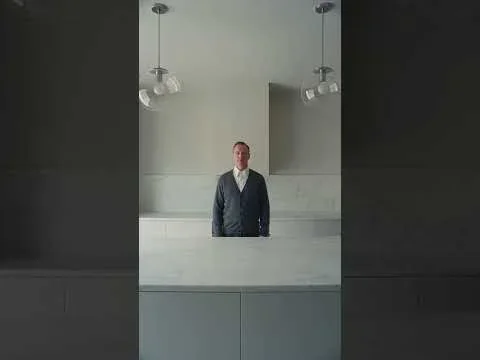

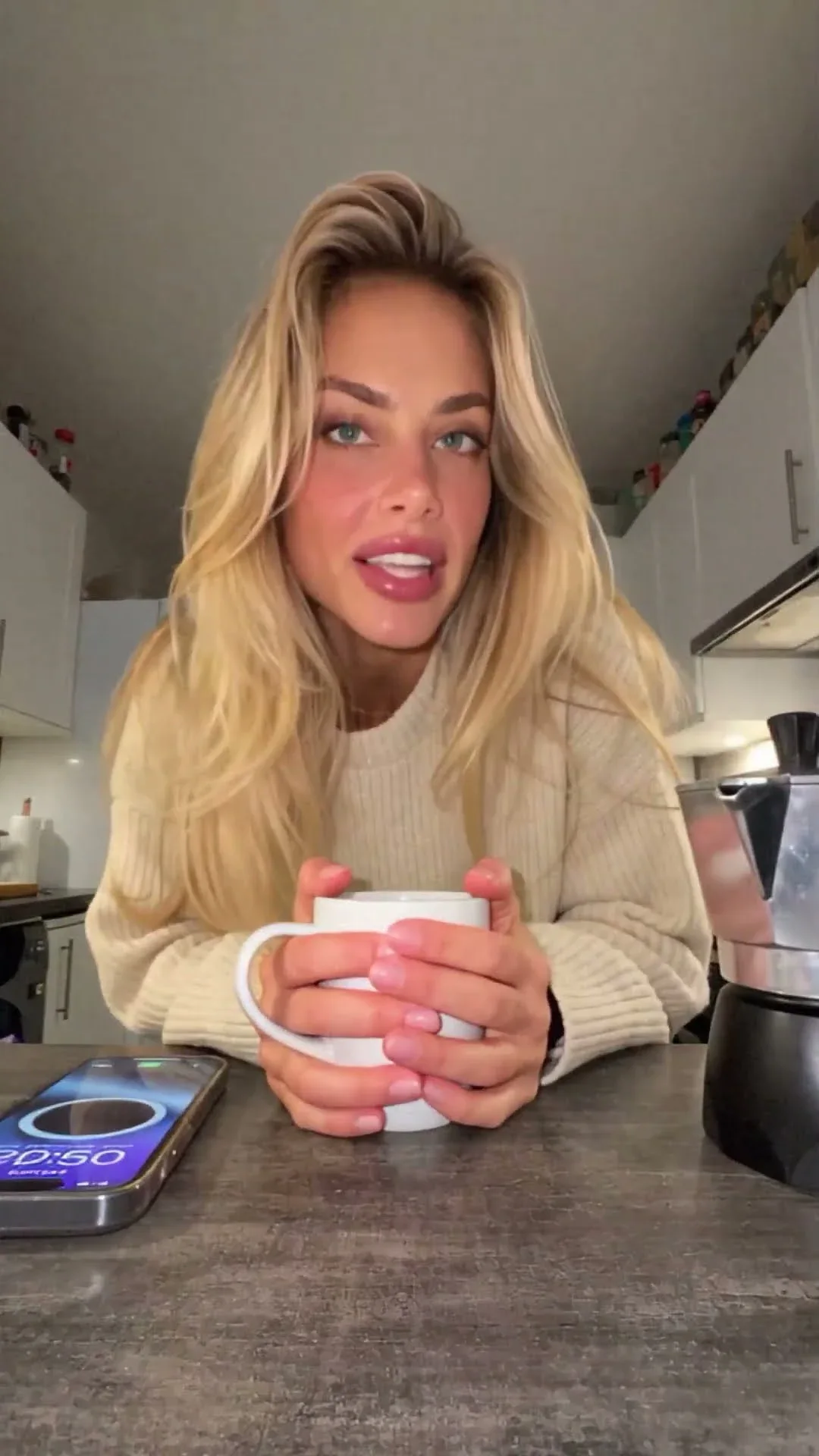
How about dinner...? is a useful study in vertical composition: a symmetrical kitchen, a single figure on the center line and a straight push-in. On a phone it reads in a fraction of a second, which is exactly what a tall frame rewards.
The first second is the hook
Short-form clips do not get an establishing shot. If frame one is a slow fade from black or an empty street, many viewers are gone before anything happens. Frame one should already show the subject and something in motion, or something that raises a question.
- Start mid-action. Write "the camera is already moving at the first frame" or "she is already running when the clip begins."
- Start on something odd. An object at the wrong scale, an unexpected place, a held expression that invites a why.
- Use contrast. One still person in a rushing crowd, one warm window in a blue night street.
- Give sound-on viewers a cue. A door slam, a splash or a short line of dialogue on the first frame. The sound and dialogue guide covers how to time it.
A woman walks into a café, sits down and orders a coffee. Vertical 9:16.
First frame: close-up of a coffee cup already tipping off a table edge, a hand catches it just in time. The camera pulls back to reveal her laughing at the café counter. Vertical 9:16, handheld.
Add on-screen hook text in your editor, not in the generation. Typed captions are sharp, correctly spelled and easy to change; generated lettering often is not. See clean text in AI images for when generated text does make sense.
Pacing: give the eye something new every few seconds
On a small screen, attention follows change. Aim for a visible change every two to three seconds: a new action, a camera move starting or stopping, a cut, a light switching on. Change does not have to mean a cut. A slow push-in that suddenly reveals a second character counts, and so does a gust of wind that sends hair and leaves flying.
Do not overload the model to get that rhythm. One clear change per two to three seconds is also roughly what a video model can perform reliably, so a well-paced reel and a well-behaved prompt turn out to be the same thing. The shot list guide shows how to budget beats against seconds.
- Five to six seconds: one action and one reveal. Ideal for loops.
- Eight to ten seconds: hook, development, payoff.
- Twelve to fifteen seconds: hook, two developments, payoff and a short hold. Usually built from two or three generated clips cut together.
Building a loop with no visible seam
A loop is a clip whose last frame flows back into its first, so it replays as if it never ended. Viewers often watch a good loop more than once without noticing the restart. There are three practical ways to build one.
Cyclic motion
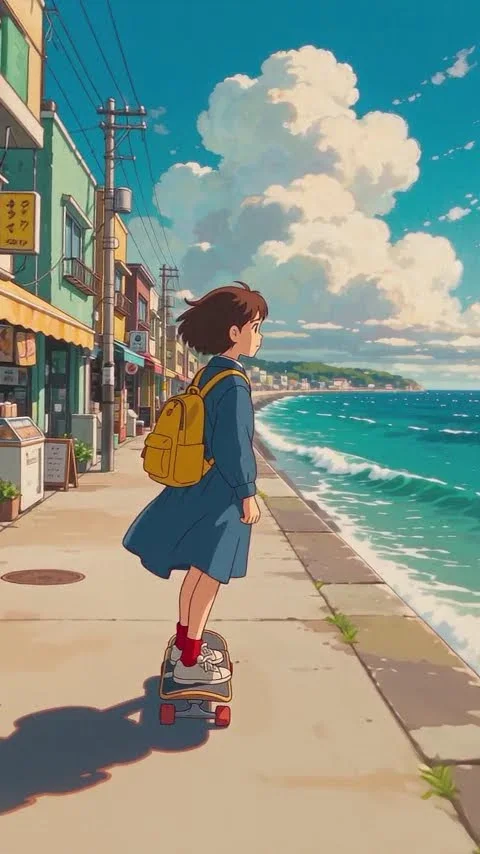
Choose motion that has no beginning or end: waves rolling in, clouds drifting, a skateboarder gliding forward with the camera tracking at a fixed distance. Because the subject's position in frame never changes, the first and last frames look almost the same.

Anime Scene Seedance 2.5 is built on this idea: continuous forward skating, rolling waves, drifting clouds and a camera that follows at a steady distance. Very little has to be trimmed to make it loop.
Return to the start
Write the end into the prompt: "in the final second she turns back to face the camera, ending in the same pose and framing as the opening frame." Movements that go out and come back, like a head turn or a push-in followed by a pull-out, are the easiest to close.
Cut on motion
End the clip on a whip pan, a hand passing across the lens or an object filling the frame, and begin it the same way. The blur hides the join. This works best when you edit, because you can choose the exact frame where the cut lands.
When a loop is almost seamless, trim the end a few frames at a time until the last frame best matches the first. A very short crossfade of four to eight frames usually hides whatever difference is left.
Design for compression and a small screen
Every platform re-encodes what you upload to save bandwidth, and that compression is hardest on fine detail that changes every frame. Drizzle, confetti, film grain, rippling water and dense foliage all demand lots of data, so after upload they can turn into blocky, smeared texture. A clip that looked crisp in the generator can look muddy in the feed.
You can plan for this in the prompt. Bold shapes, clear silhouettes and strong contrast between subject and background survive compression far better than intricate texture. If the scene needs rain, make it a few visible streaks against a dark background rather than a fine mist over everything. If you want grain, add a light touch in the editor where you control the amount.
- Choose a simple background behind the face. A plain wall or soft-focus street keeps the bit budget for the subject.
- Keep the main subject large. Faces under a fifth of the frame height lose expression at phone size.
- Avoid fast motion across fine patterns. A striped shirt during a whip pan is a recipe for shimmering artifacts.
- Export at the platform's native size. Uploading 1080 by 1920 avoids an extra resize on top of the compression.
Label it and keep it honest
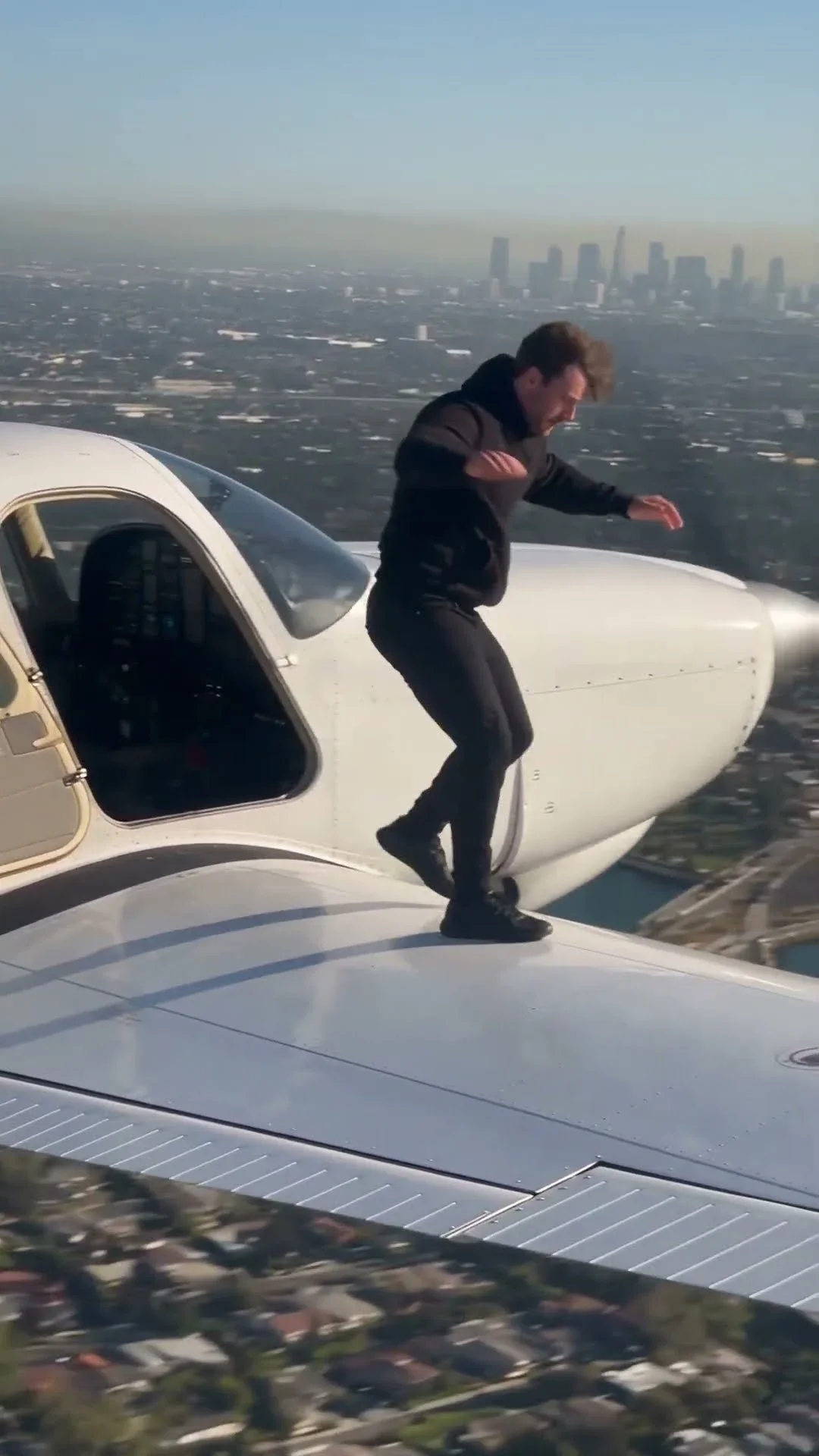
Major platforms ask creators to label realistic AI-generated video and offer a setting for it when you upload. Use it, especially for clips styled as found footage. A shaky phone video like Jumping in Aircraft is designed to look like a real accident caught on camera, which is exactly why it should be clearly marked as generated.
Use your own likeness or people who agreed, never a public figure, and add music from the platform's licensed library rather than asking a model to imitate a famous song. More on this in using AI images responsibly.
Before you post: a quick checklist
- Generated natively at 9:16, not cropped from a wide clip
- Face and action sit in the upper-middle, clear of the bottom fifth and right edge
- The first frame already shows the subject and some motion
- Something visibly changes every two to three seconds
- The loop seam has been checked frame by frame
- Hook text and captions are added in the editor
- The platform's AI-generated label is switched on
Try it with one idea: generate it once as a plain six-second clip and once rebuilt with a mid-action first frame and a return-to-start ending. Watch both on your phone, not your monitor. The difference is easiest to judge at the size your audience actually sees. Then watch each one again with the sound off, and ask whether the story still makes sense. If it does not, the fix belongs in the picture, not in the captions.