Blocking a Scene in Blender Before AI Video
Use a gray-box Blender blockout to control AI video: real-scale sets, a color code for figures, keyframed camera moves, a flat render and the prompt to map it.
Visual AI Club7 min read
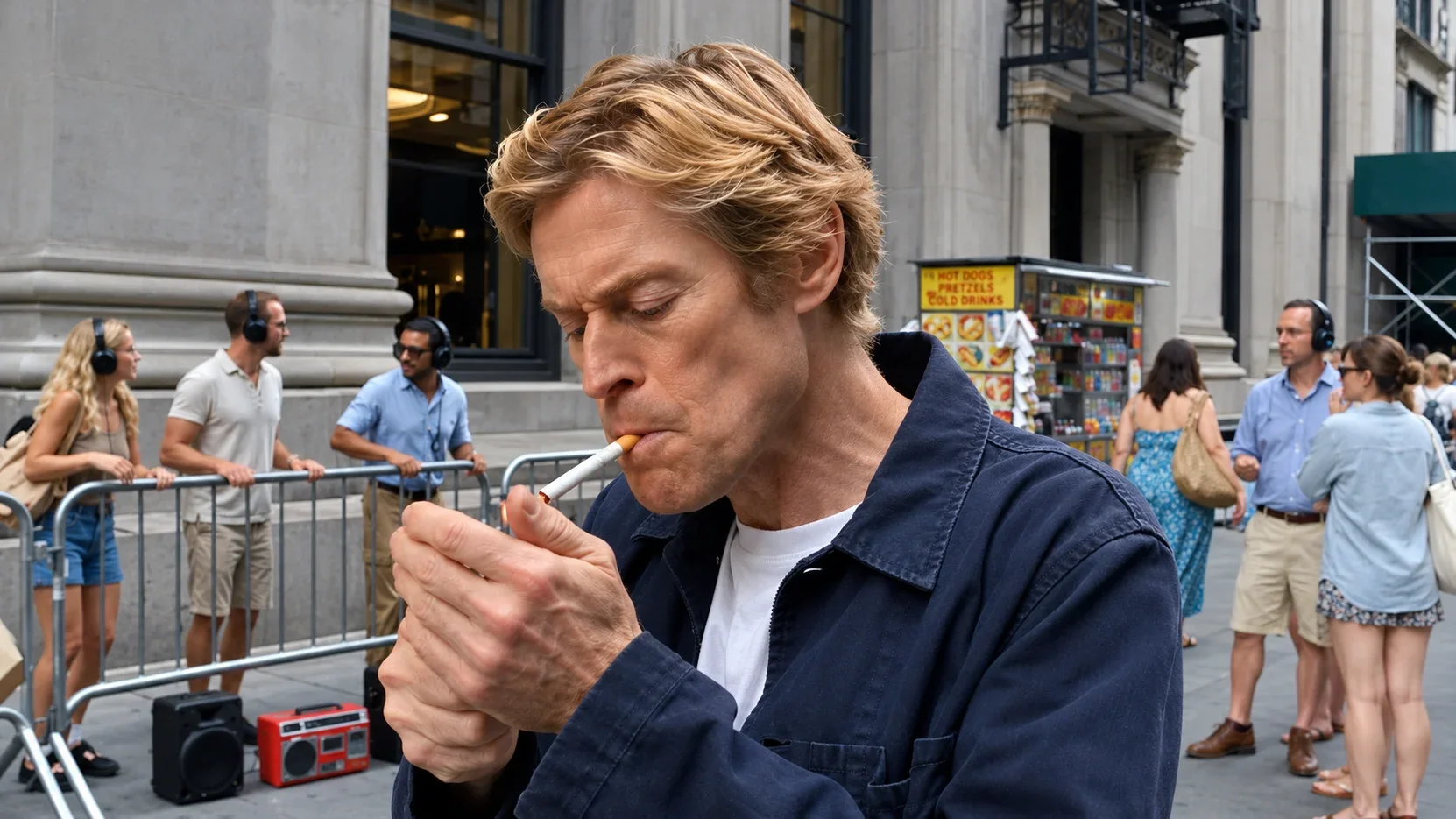
Video models are good at look and texture but unreliable at exact choreography: where a person walks, when the camera arcs, how long a pause lasts. A rough animated blockout from Blender, made of gray boxes and one orange figure, fixes much of that. This guide takes you from an empty Blender scene to a reference video, and then to the prompt that tells the model how to read it.
What a blockout gives the model
A blockout is deliberately crude 3D: boxes for furniture and buildings, simple capsules for people, and a camera moving through the scene. Animation and game studios use the same technique to test staging before anything is designed in detail. It contains none of the final look, but it pins down exactly the things text struggles to communicate.
| The blockout controls | The prompt controls |
|---|---|
| Paths: who walks where, and how far | Who the people are and what they wear |
| Timing: when each move starts and stops | Materials, colors and set dressing |
| Camera height, lens and movement | Light, weather and time of day |
| Spatial layout: what is in front of what | Sound, dialogue and mood |
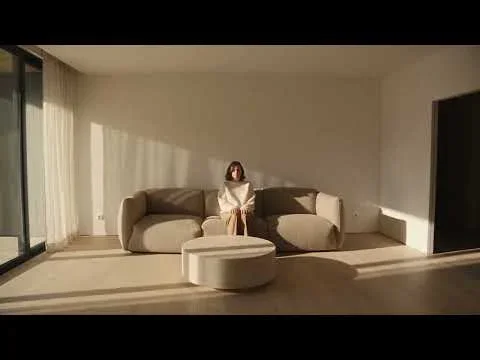
You pass the blockout render to a video model that accepts a reference video, and tell it to take only motion and camera from it. Three prompts on this site work this way: a symmetrical kitchen push-in, a living-room walk-and-sit, and a handheld street arc in Blender and Claude Skill by VAIC.
Use a color code the prompt can name
The model has to know which gray shape becomes which real thing, so give every role a flat, nameable color and stick to it across projects.
- Orange: the protagonist. High contrast against gray and easy to refer to in words.
- Light gray: other people, furniture and props.
- Dark gray: walls, floor, ceiling and buildings.
- A small cone on each head: points where the character is looking, so head turns are visible on a featureless capsule.
Keep every surface flat and untextured. The less look the blockout has, the less the model is tempted to copy it. The prompt will still explicitly ban the clay colors and the cone, but a plain blockout makes that job easier.
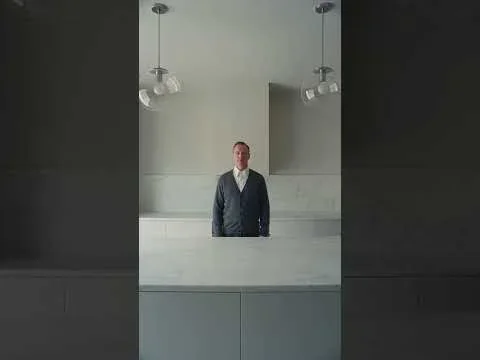

How about dinner...? shows the mapping in full: the low central block is the kitchen island, the two tall blocks are cabinet columns, the spheres are pendant lamps, the orange figure is the man, and the cone only marks where his head looks.
Build the set at real scale
Blender's default unit is the meter, so one grid unit equals one meter. Build at real dimensions and your camera will behave like a real camera: a 35mm lens at eye height in a 5-meter room frames exactly what it would on a real set. Build at random scale and your lens numbers stop meaning anything.
| Object | Typical real size | Blockout shape |
|---|---|---|
| Adult person | 1.6–1.85 m tall | Capsule or cylinder with a small cone on top |
| Interior door | About 2.0–2.1 m tall, 0.8–0.9 m wide | Gap in a wall box |
| Ceiling height | 2.4–3.0 m in homes | Thin box, or leave it off |
| Dining table | About 0.75 m high | Flat box |
| Kitchen counter | About 0.9 m high | Long box against the wall |
| Sofa seat | About 0.45 m high | Two stacked boxes, seat and back |
Add shapes with Shift+A, scale them with S, and type exact dimensions in the item panel (N) when it matters. Do not model detail. A sofa needs only to occupy the right space at the right height so the actor sits at a believable level.
Leave out the wall the camera looks through, like a theater set. It gives the camera room to move. Then tell the prompt that the missing wall is not part of the look, as Sit down with me does with its open front.
Animate the figures with a few keyframes
You do not need rigs or character animation. A capsule sliding along the floor reads as walking; lowered by roughly 0.4 meters in front of a sofa, it reads as sitting; rotated on the spot, it reads as turning. The head cone, parented to the capsule and rotated separately, handles glances.
- Set the frame rate to 24 fps in the Output properties, and the frame range to seconds times 24. An 8-second shot ends at frame 192.
- Move the playhead to the start frame, place the figure, hover over the viewport and press
Ito insert a keyframe. - Move to the next key moment, reposition or rotate the figure, and insert another keyframe.
- Check walking speed. People average a little over one meter per second, so a capsule that crosses a 4-meter room in one second will make the model invent a sprint.
- Play it back with the spacebar and adjust until the timing feels right in real time.
The camera is the most important object
Everything the model copies most faithfully comes from the camera: framing, height, lens and movement. Add a camera, press Numpad 0 to look through it, and set its focal length in the camera's Object Data properties. Blender's default camera uses a 36mm sensor width, so its focal lengths behave like full-frame lenses and match the numbers you will write in the prompt.
- Eye level: place the camera at around 1.5–1.6 m for an adult-height point of view.
- Dolly or truck: keyframe the camera's location at the start and end of the move.
- Orbit or arc: add an Empty at the subject, parent the camera to it, and keyframe the Empty's rotation. The camera circles at a constant distance.
- Changing lens: you can keyframe the focal length too, which is how the street prompt tightens from about 36mm to 48mm during its arc.
Easing: the detail most blockouts miss
Blender's default keyframe interpolation is Bezier, which eases in and out: moves start gently and settle gently, like a real operator. For a mechanical, constant-speed push like the kitchen shot, select the keys in the Graph Editor or Dope Sheet, press T and choose Linear. Whatever you choose, describe the same easing in the prompt so the two instructions agree. The camera movements guide covers what each move communicates.
Render a clean, flat reference
The render should be fast and plain. The Workbench engine is ideal: flat shading, object colors, no reflections. Alternatively, use View › Viewport Render Animation from the camera view with overlays switched off, so no grid, outlines or gizmos appear in the frames.
- Set the resolution to match the final clip, for example 1920 by 1080 for 16:9 or 1080 by 1920 for 9:16.
- In Output properties, choose FFmpeg Video as the file format, MPEG-4 as the container and H.264 as the codec.
- Make sure the clip length matches the duration you will write in the prompt.
- Render the animation with
Ctrl+F12, and watch the file once to check nothing unexpected is visible.
Write the prompt that reads the blockout
Open the prompt with an asset roles section before anything else. It says what the reference video is, what to take from it (camera movement, framing progression, and the motion and timing of the figures) and what to ignore (the primitives, flat colors, flat floor and empty background). Then map every color to a real thing, and only then describe the people, place, style, timeline, camera and sound as usual.
Video 1 is a gray and orange blockout; use only its camera movement and the figures' motion and timing. The orange figure is the protagonist, the light gray figures are café customers, the dark gray blocks are the walls and counter. The cone on each head only shows gaze direction and is not an object.
Close with an exclusions line that bans the blockout's own look: no clay, no gray primitives, no orange figures, no untextured blocks, no cone on any head. Then make sure every time in your written shot list matches the blockout exactly. If the prompt says she sits at 4 seconds and the blockout sits her at 4.5, the model has to choose, and you lose the precision you built the blockout for. The shot list guide shows how to structure the timeline.
When a generation gets the timing wrong, fix the blockout rather than adding more words. Moving a keyframe is faster and far more reliable than describing the correction. If you would rather have Claude draft both the blockout plan and the prompt from one idea, see Claude skills for creative work.
For your first attempt, keep it to one room, one orange figure walking four meters and sitting down, and one slow push-in over eight seconds. Render it, write the mapping prompt, generate, and compare the result frame by frame with your blockout. Seeing how closely the model follows a gray box is the moment this workflow starts to make sense.